Check live sensor support separately from workout import support
By Mr.Apps · Oct 21, 2026
Category:Wearable
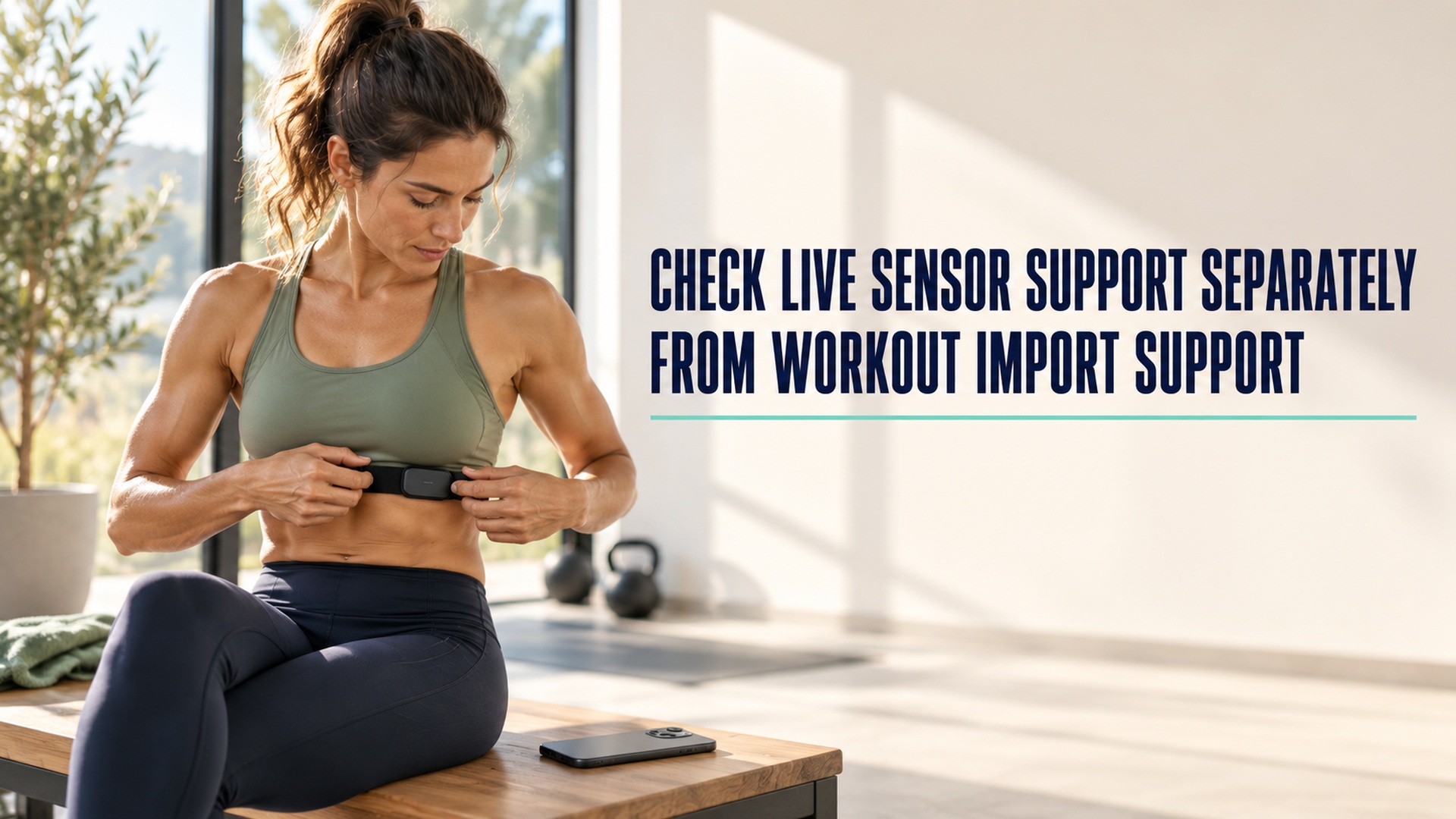
A heart-rate strap appearing in a workout history does not prove it supplied live data during the session. A completed workout can arrive through a later sync or health-data import, while a live sensor connection has to be discovered, connected, and read while the workout is under way. Treat those as two separate checks before you rely on a sensor for pacing or decide that a recording is complete.
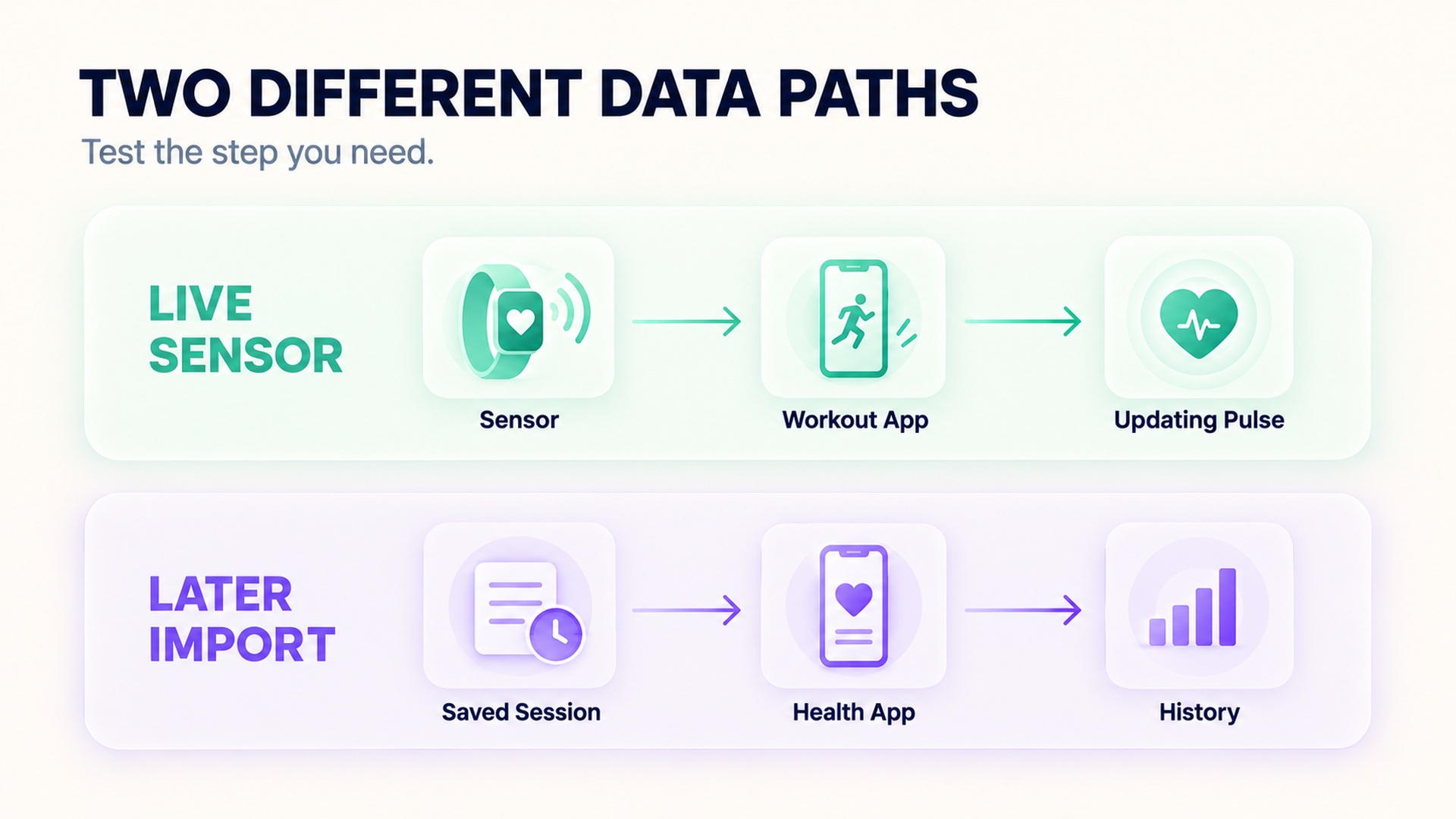
The distinction is useful when an app shows a heart-rate graph after a run but did not display a pulse on the workout screen, or when the workout appears in a health dashboard even though the external sensor was never paired to the app. A record can be transferred after the fact. Live support is a capability of the sensor, receiving device, app, protocol, permissions, and workout mode working together at that moment.
What a live connection has to do
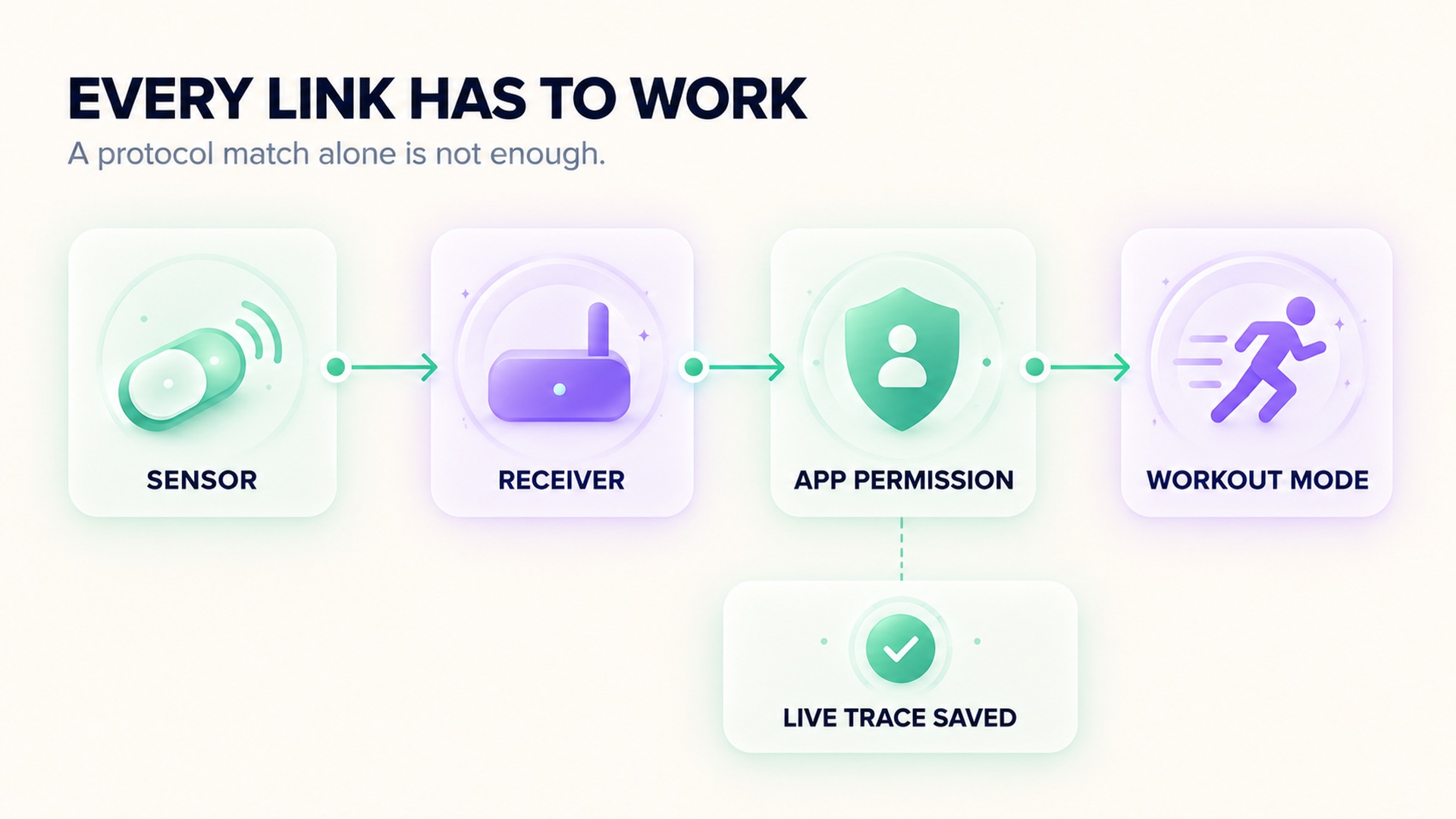
An external sensor broadcasts or otherwise provides measurements. A phone or watch must be able to detect the sensor, connect using a supported communication method, identify the service or data type, and receive the stream. The app must then attach that stream to the active workout and keep it available while the recording continues. A failure at any of these steps can leave the workout with no live external pulse even if the sensor itself is functioning.
Bluetooth Low Energy heart-rate sensors commonly expose a standard service for fitness applications. The standard describes a heart-rate measurement characteristic that a receiving device can subscribe to, but a standard alone does not guarantee that every app implements the service or offers it in every activity mode. The Bluetooth heart-rate service definition describes the data service; it does not certify that a particular app has a user-facing connection flow for every compatible sensor.
Compatibility therefore has more than one layer. Check the sensor's supported radio or protocol, the phone or watch hardware, the operating system's permissions, the app's supported devices, and the specific workout type. A sensor may support Bluetooth and ANT+, for example, while the receiving device supports only one of those routes. Even where both devices speak Bluetooth, the app may need a sensor-selection screen and may not accept a connection from its general health-data import settings.
Pairing is not the same as seeing workout data
Pairing usually establishes that a device can be recognized or remembered by a phone, watch, or application. It is a useful first step, but it does not prove that the workout app is connected to it now. A sensor can be paired at the operating-system level and still be unavailable inside an app that expects its own connection process. The app may also connect to a different sensor, choose its built-in optical reading, or wait until a workout starts before displaying the external signal.
The receiving app's instructions matter because connection behavior is product-specific. One app may search for a heart-rate sensor from its workout setup screen; another may require adding it from a device list before starting the session. Some sensors advertise only while worn or active, while others may need a wake-up action. A compatibility check from the sensor maker is a useful example of why model, receiving device, and software all need to be considered together.
On a phone, the app also needs permission to use the relevant Bluetooth capability. A user can deny or later revoke a permission, and operating-system behavior can change across versions. Low-power modes, background limits, or a screen-off transition may affect an app's ability to maintain a session depending on how it is designed. The phone's Bluetooth connection documentation describes scanning for and connecting to peripherals as live connection work. That process is separate from reading a workout that another app has already written to a shared health store. For Android apps, Bluetooth Low Energy connection guidance describes how a client connects to a discovered device.
Import usually happens after recording
Workout import answers a different question: can an app read or receive an already-saved session and its associated measurements? A session might be transferred from a watch after the activity ends, synchronized from a service, or written to a shared health database. The record can contain heart-rate samples and a workout interval without the receiving app ever having controlled the original sensor connection.
For example, a shared health platform may store exercise sessions and heart-rate records when an app has the required permissions. That integration can make past workout data visible without proving that the receiving app can discover an external sensor live. The workout data guide explains how recorded sessions and workout measurements are represented for later access; it is not a compatibility list for live sensor pairing.
This difference can explain why the same workout looks complete in one place and incomplete in another. The recording app may have kept the external signal, while the analysis app imported only the session summary. Or the session may sync before all samples arrive. Check which app created the original workout, where the heart-rate samples were first recorded, and whether the receiving app imports samples or only the workout shell.
Test the full path before a session
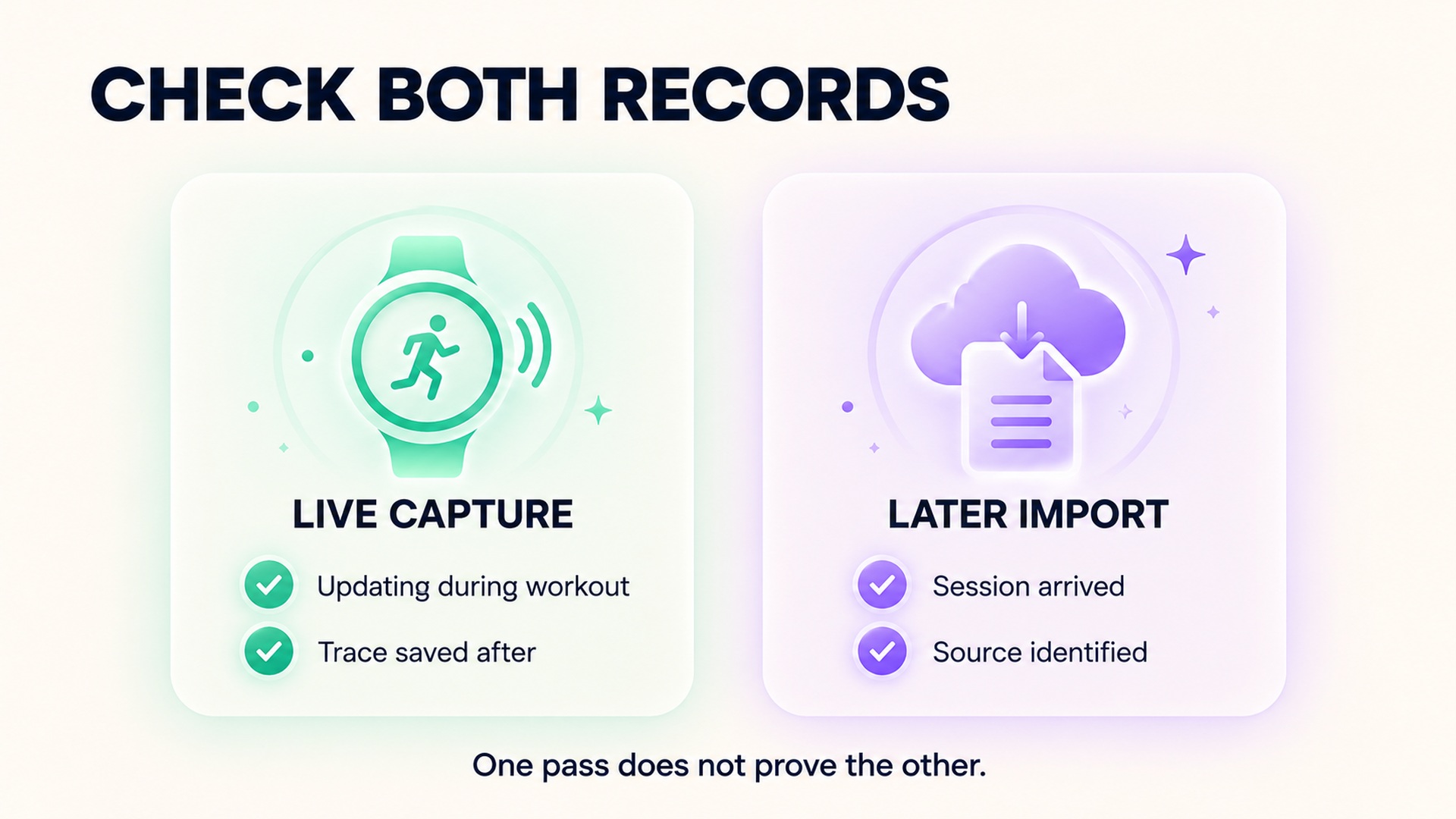
Use a short, low-stakes test rather than trusting a brand name or a list of supported protocols. Confirm the exact sensor model, open the app's instructions for that model, grant only the Bluetooth permissions the app requests for connection, and look for a live signal in the workout setup screen. Start a brief test recording, observe whether the live value updates, then stop and confirm that the session contains a heart-rate trace.
Check both the live display and the saved result. A number that appears once at setup may be a last-known reading rather than an active stream. During the test, make a small movement and see whether new measurements continue to arrive. After stopping, check whether the saved workout includes timestamps or a plotted series rather than only one summary value. If the app has a sensor status indicator, note whether it reports connected, searching, or disconnected.
If the test fails, change one condition at a time. Confirm the sensor is charged or has a working battery, worn as directed, and not already holding a connection to another device. Check whether the app needs to be open in the foreground, whether Bluetooth access is enabled, and whether the workout profile supports external sensors. The manufacturer's troubleshooting checklist gives examples of pairing, receiver, and electrode checks for specific models. Restarting or re-pairing may help in some cases, but first follow the device and app instructions so you do not remove a pairing that is needed elsewhere.
Do not infer live compatibility from a single imported graph. That graph could have come from the watch's own sensor, another connected device, a later synchronization, or a record written by a separate workout app. To understand what the app is using, inspect its session details and source labels. An existing guide to how workout records can combine across services gives broader context for those separate data routes.
Decide what evidence answers your question
If your goal is live pacing, the important evidence is an updating value during the workout and a saved trace from the same session. If your goal is to keep a health history, a later import may be enough, provided the source and time range are clear. If you need both, verify both workflows independently. Do not treat a successful history sync as proof that the next workout will receive a live sensor signal.
Some sensors can record locally and transfer a session later, but that is another distinct capability. Local memory can be useful when a phone or watch is not nearby, yet it does not mean the app can display the signal live while the sensor is out of range. The device may require a specific start command, compatible app, and later transfer step. Read the exact model's instructions before assuming it will store an unstarted or interrupted session.
Keep a small record of the setup that passed: sensor model, receiving device, app version, selected connection method, workout profile, and whether the test included a live readout and a saved trace. This note helps identify what changed after an app update or device swap. It also prevents a broad statement such as “the sensor works” from hiding the narrower facts that one model, one app, and one workout mode worked under one tested configuration.
If live data disappears repeatedly despite following the manufacturer's setup guidance, use the app's support channel or the sensor maker's troubleshooting steps. A missing stream is a data-quality issue; it is not evidence that the heart itself is behaving abnormally. Keep symptoms and health concerns separate from connection troubleshooting, and seek clinical advice for concerning symptoms rather than trying to diagnose them from a dropped Bluetooth trace.
The practical takeaway is simple: verify the point in the data path that matters to you. Live sensor support is tested before and during the workout; import support is tested after a session exists. Treating them separately makes troubleshooting faster and keeps an incomplete recording from being mistaken for a sensor or health conclusion.
FAQ
If my heart-rate graph appears later, was the sensor connected live?
Not necessarily. The graph may have been captured by the watch itself or imported from a different app after the workout. Check the original session's source and whether the workout app displayed a changing external reading during recording.
Does Bluetooth support guarantee that my app accepts the sensor?
No. The sensor, phone or watch, operating system, app, protocol, and activity mode all have to support the connection. Confirm the exact sensor model in the app's current instructions and perform a short test recording.
Can I use a sensor without carrying my phone?
Only if the specific sensor and workflow support local recording or another nearby receiver. A live broadcast alone does not save a session. Confirm how recording starts and how the data transfers later for your exact model.
*This article is for informational purposes only and is not a substitute for professional medical advice, diagnosis or treatment.*
Related articles

A heart rate export may not contain beat interval data
A heart-rate export can contain many beats-per-minute samples without preserving the interval between each beat. Learn which fields to check before treating a file as suitable for HRV analysis.

Checking pool length before trusting a swimming distance record
Pool distance depends on both the configured pool length and the number of lengths detected. Learn how to check those inputs before accepting a swimming distance record.

Why a longest workout record is different from a fastest distance record
A longest-workout record describes duration, while a fastest-distance record uses a defined distance and time. Learn how pause rules and segment boundaries affect each result.

Why a cycling power record needs its effort duration
A cycling power record needs its averaging window to show whether it reflects a brief peak or sustained effort. Learn how duration, sensor source, and workout context affect comparisons.

Keeping transitions visible in a multisport workout record
Transition periods are part of a multisport event’s full timing record. Learn how to keep T1 and T2 separate from sport splits and verify how each activity was timed.

How much confidence to place in wearable vertical oscillation
Vertical oscillation is a device-specific movement estimate, not a universal efficiency score. Learn how to compare readings with attention to speed, sensor placement, and validation limits.

Reading ground contact time without chasing the lowest number
Ground contact time is affected by pace, surface, fatigue, and sensor method. Learn how to compare similar segments without treating a lower reading as a universal goal.

Why running cadence and running speed need separate interpretation
Cadence describes step frequency, while speed describes distance over time. See how pace, sensor method, and conditions change what the two running metrics can tell you.

When a pace chart uses moving time instead of elapsed time
Moving pace and elapsed pace use different time windows, so the same route can produce different averages. Learn what to check before comparing a pace trend.

What elevation gain adds to a running distance trend
Elevation gain adds terrain context to a running distance trend, but it is not a complete measure of effort. Learn how device methods and route profiles affect comparisons.