Adding a workout photo requires a separate privacy review
By Mr.Apps · Oct 23, 2026
Category:Wearable
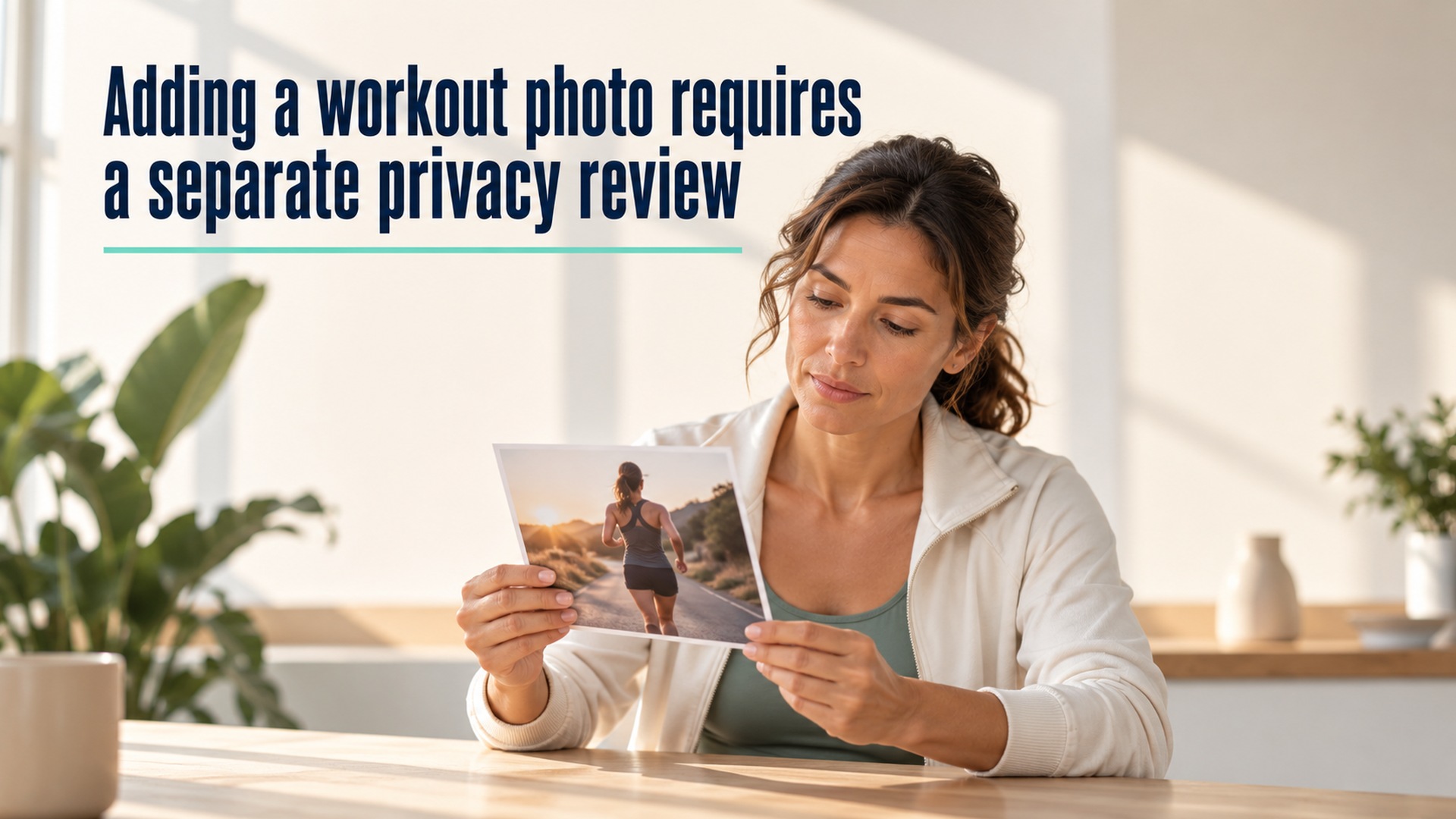
A workout photo can reveal information that is not contained in the activity numbers. The image may show a face, a screen, a workplace, a home interior, or a recognizable background. It can also carry metadata such as the date, time, or location where it was taken. Before adding a photo to a shared workout, I review both the visible image and the audience that will receive it.
The activity record and the image are separate pieces of content. A route map can expose location in one way; a photograph can expose it through a sign, a window view, a badge, or embedded coordinates. An audience setting may apply to the post while the photo has its own sharing options. I do not assume that one privacy choice covers every detail in the image or every copy of the file.
Inspect what the image shows
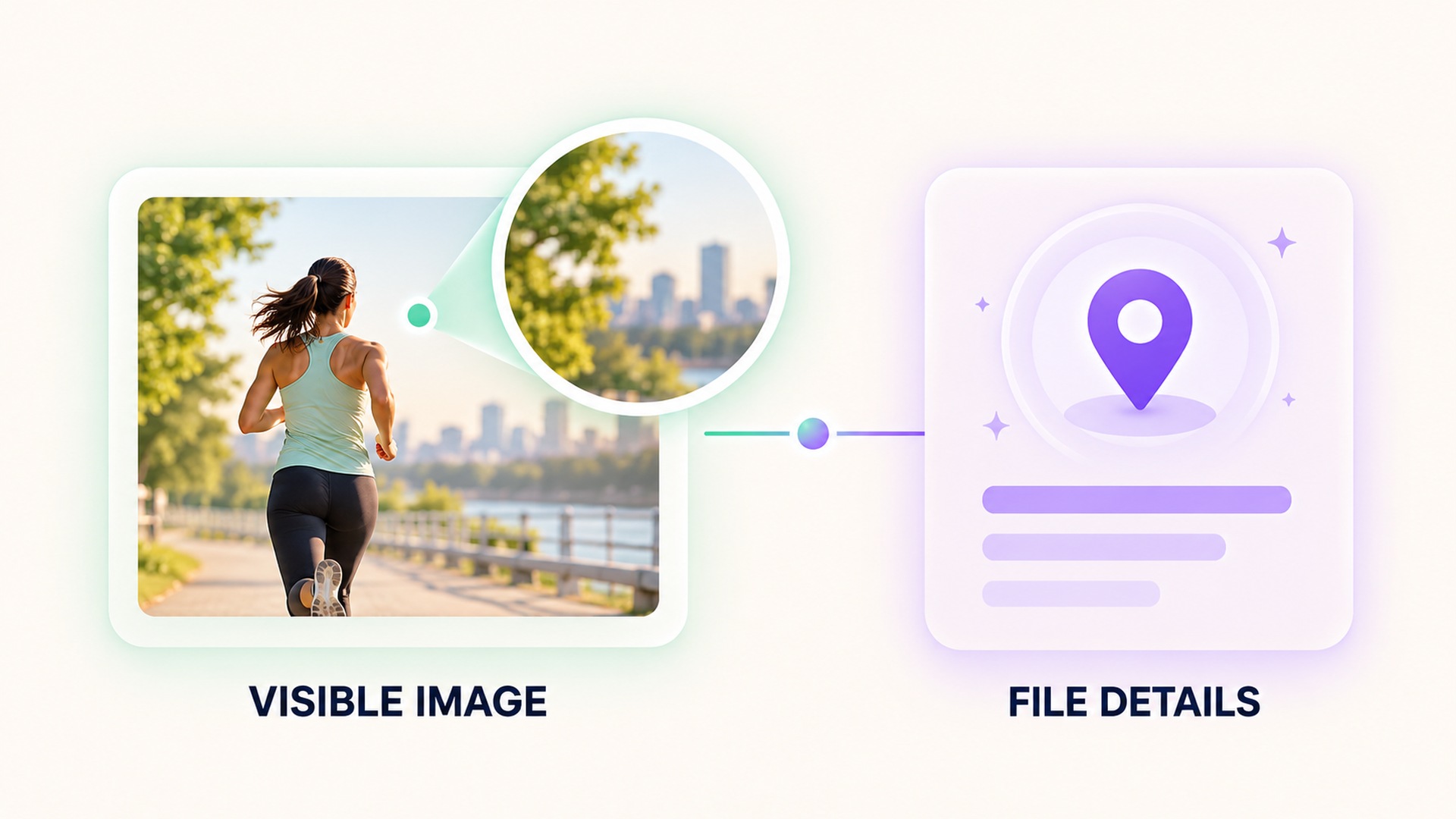
Begin with the full photo, not the thumbnail displayed beside the workout title. Look across the frame for details that could identify a person, a location, or a routine. A reflection in glass can show people or screens. A device display may include names, health values, or notifications. A street sign, building number, or distinctive background may reveal where the activity happened even if the caption says nothing about location.
Consider what is visible at the edges of the picture. Cropping may remove an obvious sign while leaving a reflection, uniform, or route marker elsewhere in the frame. If several photos are attached, review each one separately because the background can change from image to image. Do not treat a generic fitness image as private simply because the main subject is the workout.
Check metadata as well as pixels
Some image files include information about when and where they were created. Depending on the capture and sharing workflow, the metadata can include location coordinates, time, device details, captions, or edit history. The person viewing the image may be able to learn something from this information even if the location is not visible in the photograph itself.
The photo app may show location information and offer a way to remove it before sharing. A photo metadata guide describes where location data can come from and how it may be shared. Another sharing-options guide explains that the sender can adjust what information accompanies a photo. The exact options depend on the app, file type, and destination, so check the final preview for the share method you are using.
If the photo is selected from a library, inspect its information panel before attaching it. The photo details screen guide describes how a person can review date, time, camera, and location details for an image. Not every file contains all of these fields, and a detail screen may not show every transformation performed by another app. Treat the displayed metadata as useful evidence, not as a guarantee that nothing else is attached.
Review who will receive the photo
The sharing audience can be different for a workout post, a profile, a photo album, or a link. Check whether the post is limited to selected people, visible to all followers, or accessible to anyone with a link. Find out whether new followers can see old posts and whether the service allows the image to be copied or downloaded. If the app combines the workout and photograph in one card, review the card preview before confirming. A photo-location sharing guide shows that some services provide an additional choice for whether a shared album or conversation includes location details.
Location settings on the device and audience settings in the app answer different questions. A location permission may control whether the camera records coordinates. A share option may control who can view the image. The privacy and location overview explains that device permissions can be managed separately from an app’s own sharing behavior. Turning off future location collection will not necessarily remove coordinates already stored in an existing image.
When an image includes another person, consider whether they expect the photo to be shared. A workout post may reveal their presence, clothing, or relationship to the activity even if they are not named. When the image shows a private room or another person’s property, think about whether the audience needs to see the unedited background. If you are uncertain, choose a different photo or crop the image while preserving the relevant content.
Avoid relying on a single privacy label
The word “private” can refer to the account, the post, or one audience choice. It does not necessarily describe how the service stores the file, whether an integration can access it, or what happens after someone saves a copy. The mobile-health-app guidance for software developers discusses data minimization and clear communication about how health information is handled. A user still needs to examine the current sharing controls for the particular photo and post.
Also check whether the workout app imports a photo from another service or offers a link to the original file. If the photo remains in a shared album, changing the workout post may not change that album’s audience. If a post is deleted, copies already saved by viewers may remain. These possibilities depend on the product, so consult its current documentation if you need to know whether an action removes the original file or only hides one display.
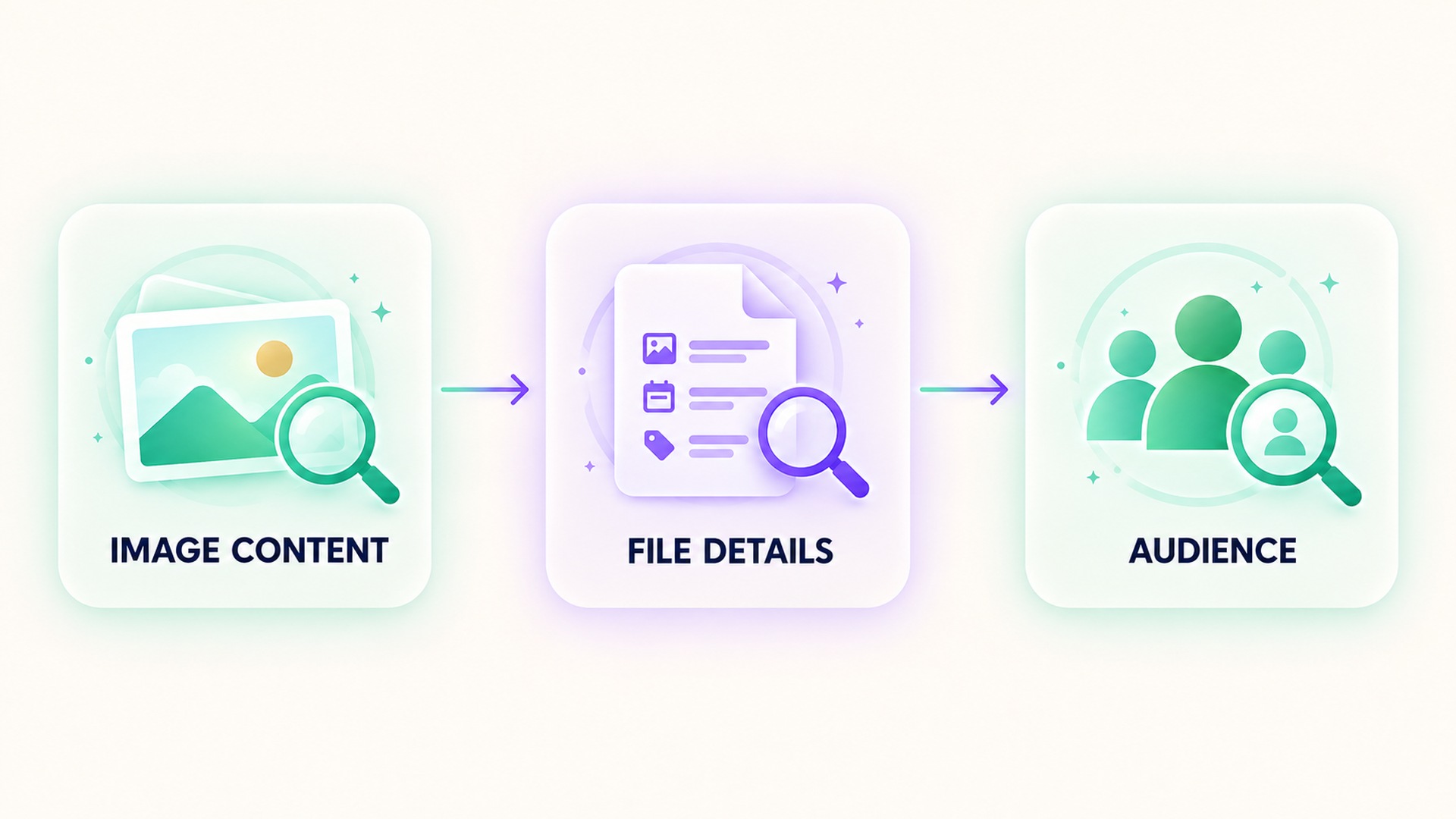
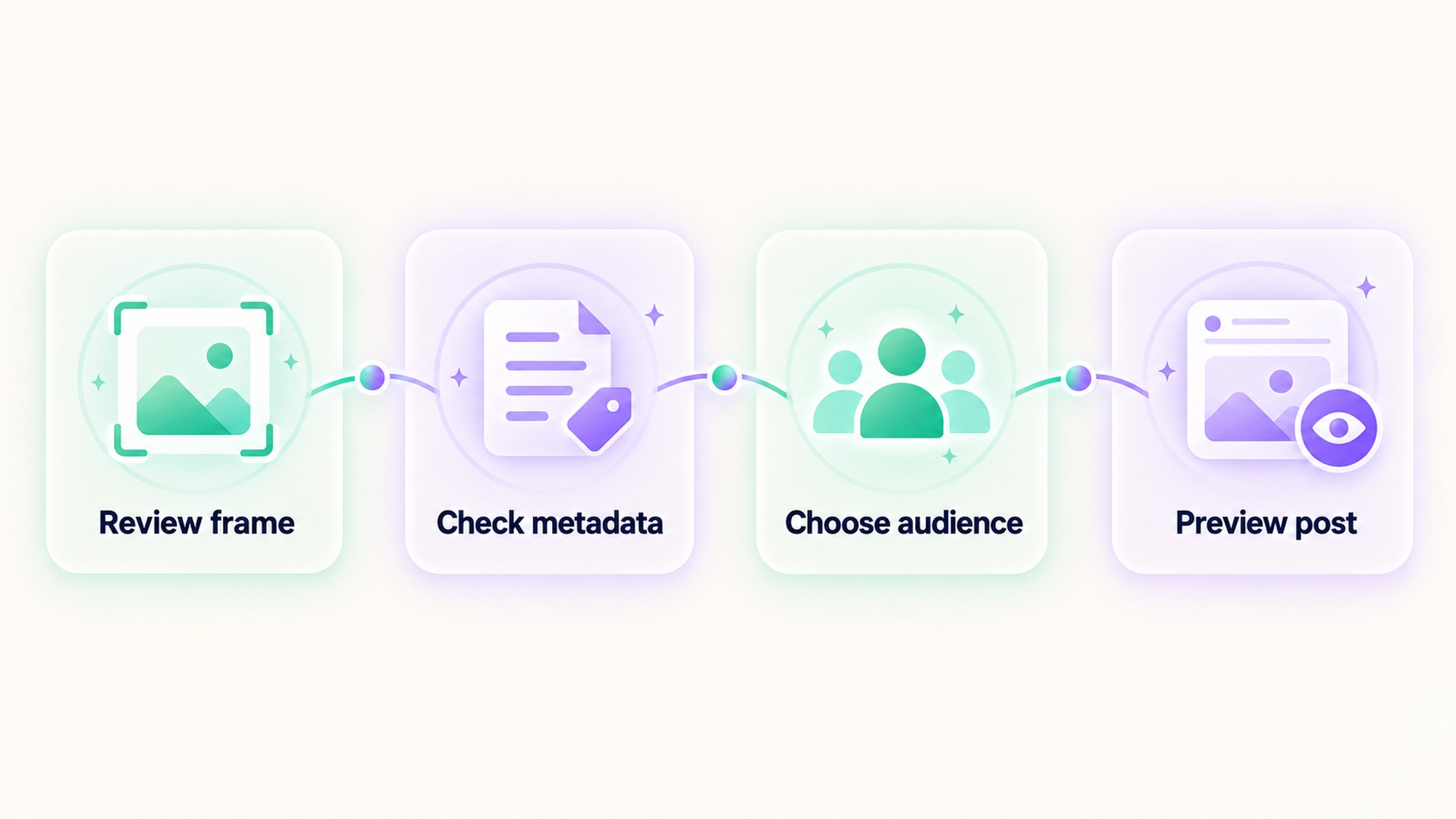
The safest review is concrete. Look at the whole image, check its available metadata, confirm the share audience, and see what the final post preview contains. If the image includes a map, device screen, or recognizable place, decide whether that detail is necessary. If the audience or metadata behavior is unclear, do not add the photo until you can verify it.
A simple pre-share routine
Before attaching a workout photo, ask what the image adds to the record. If the answer is only that it makes the post more engaging, make sure the visible background and audience still suit the information being shared. Crop or select another image when a detail is unnecessary. Review the preview after editing because the layout may show a different part of the picture than the photo library did.
Then inspect the destination. Is the photo shared with the same people who can see the workout? Does a link extend access beyond that group? Can a viewer save the original? Are location and other metadata included? Record the setting you chose if you expect to use the same workflow again. A consistent check reduces the chance of sharing a location or personal detail by accident.
For additional context on separate visibility controls for health values and workout summaries, see this guide to choosing the audience for each metric. A photo adds visual and file-level information, so it deserves its own review.
The camera’s location permission affects future capture, while an image’s current metadata is a property of the file already saved. Removing a permission does not retroactively clear every existing photo. Likewise, removing a location tag from a library view may not alter a separate original file or copy that was previously exported. Follow the specific app’s instructions for the exact image and destination, and verify the shared preview when the service provides one.
If a photo is already posted and you discover an unintended detail, first limit its audience or remove it using the app’s supported controls. Then review whether the original remains in a separate album, cloud library, or link. Do not assume that one deletion action removes every copy held by the service or previously saved by a viewer. Check the product’s current documentation when the distinction matters.
When a service offers a share preview, inspect the destination and the actual file representation. A preview may show a reduced image, while the recipient can open or download a higher-resolution version. Check whether editing, cropping, or location removal creates a new copy or changes the original in the library. If the workflow includes an export step, check the exported version too. Different services may handle embedded metadata differently, so a control in one app cannot be assumed to apply after the image moves elsewhere. These checks help keep the decision tied to the file and audience that will actually receive the photo.
Keep a private original when an edited copy is needed for a post.
Frequently asked questions
Can a workout photo reveal location if no map is attached?
Yes. The image can show recognizable landmarks or include location metadata, depending on how it was captured and shared. Review both the visible background and the file’s available information.
Does a private workout post remove photo metadata?
Not necessarily. Audience controls and metadata controls are separate. Check the app’s sharing options and the final file or preview to see what information accompanies the image.
What should I do if another person appears in the photo?
Consider whether the audience and context are appropriate for that person. If you are unsure, choose another image, crop them out when that preserves the relevant content, or do not share the photo.
*This article is for informational purposes only and is not a substitute for professional medical advice, diagnosis or treatment.*
Sources:
Apple Support·Apple Support·Apple Support·Apple Support·Federal Trade Commission·Google Photos Help
Related articles

Review who can see each health metric before enabling social sharing
A social-sharing control can reveal a specific health metric to a chosen audience or a wider group. Check the metric, audience, preview, and ongoing data permissions before enabling it.

Health notification previews can expose information on a locked screen
A health alert can be useful while its full text stays hidden from bystanders. Check notification previews on the phone and paired devices before relying on lock-screen privacy.
Confirm a workout has stopped before trusting its final totals
A workout can keep recording after the exercise itself has ended. Check the stop action, saved summary, and time boundaries before interpreting the totals.

Automatic workout merging can hide the break between sessions
Workout history can combine nearby sessions into one entry, even when you intended to record a meaningful break. Review the timestamps, segments, and source before interpreting the total as one continuous effort.

A supplement quality seal does not prove a recovery benefit
A quality seal may indicate that a product passed specific checks, but it does not show that the supplement improves recovery. Keep manufacturing evidence, ingredient evidence, and human outcome evidence separate.

Lower energy after cutting caffeine may need withdrawal context
Fatigue after reducing caffeine can be part of withdrawal, but it is not the only possible explanation. Keep the timing of the change, symptoms, sleep, and other context together before interpreting an energy score.

Total fat does not describe the saturated fat in a food log
Total fat and saturated fat are related label fields, but they are not interchangeable. Keep the total and its saturated-fat component visible when recording food or comparing packages.

Net carbohydrate claims need the total carbohydrate record beside them
A “net carb” number can hide how it was calculated. Keep total carbohydrate, fiber, sugar alcohols, serving size, and the subtraction method together so a food record remains interpretable.

Check servings per container before logging a whole package
Nutrition values are often listed per serving even when a package contains several servings. Check the serving count and the amount eaten before entering the whole package into a food log.

Sodium and salt amounts should not be entered as the same number
Salt and sodium are related but they are not the same quantity. Keep the label’s nutrient value and the food’s salt description separate so a nutrition log does not silently change units.