Health notification previews can expose information on a locked screen
By Mr.Apps · Oct 23, 2026
Category:Wearable
A health notification can be useful to receive while its full text is not appropriate to show on a locked screen. An alert may include a metric, a symptom note, an appointment detail, or a reminder that reveals private information to someone nearby. The decision to receive an alert and the decision to display its contents are separate settings, and I review them separately before relying on a lock-screen preview.
The notification itself does not explain the medical meaning of the message. A wearable or app may present a reminder, a wellness prompt, or a record update. Whether the alert is urgent depends on its source and wording, not on whether the screen preview is visible. Privacy controls can limit what appears to other people without changing the information stored in the app or the importance of responding to a genuine clinical instruction.
A notification can reveal more than its app name
Some lock screens show only an app icon or a count. Others show a title, sender, or message text. A health alert may expose a score or describe an appointment even if the phone remains locked. A watch can display an alert that arrives from a paired phone, and the visible details can depend on settings on both devices. Check the actual preview with the device locked rather than assuming that a setting on one screen controls every surface.
The operating system may let a person choose when previews appear, such as always, only after unlocking, or never. A platform’s notification preview controls describe how to change this behavior for an app or across apps. Some apps do not support previews or use their own notification settings. The available choices and menu names can also vary by software version.
Hide the content without losing every alert
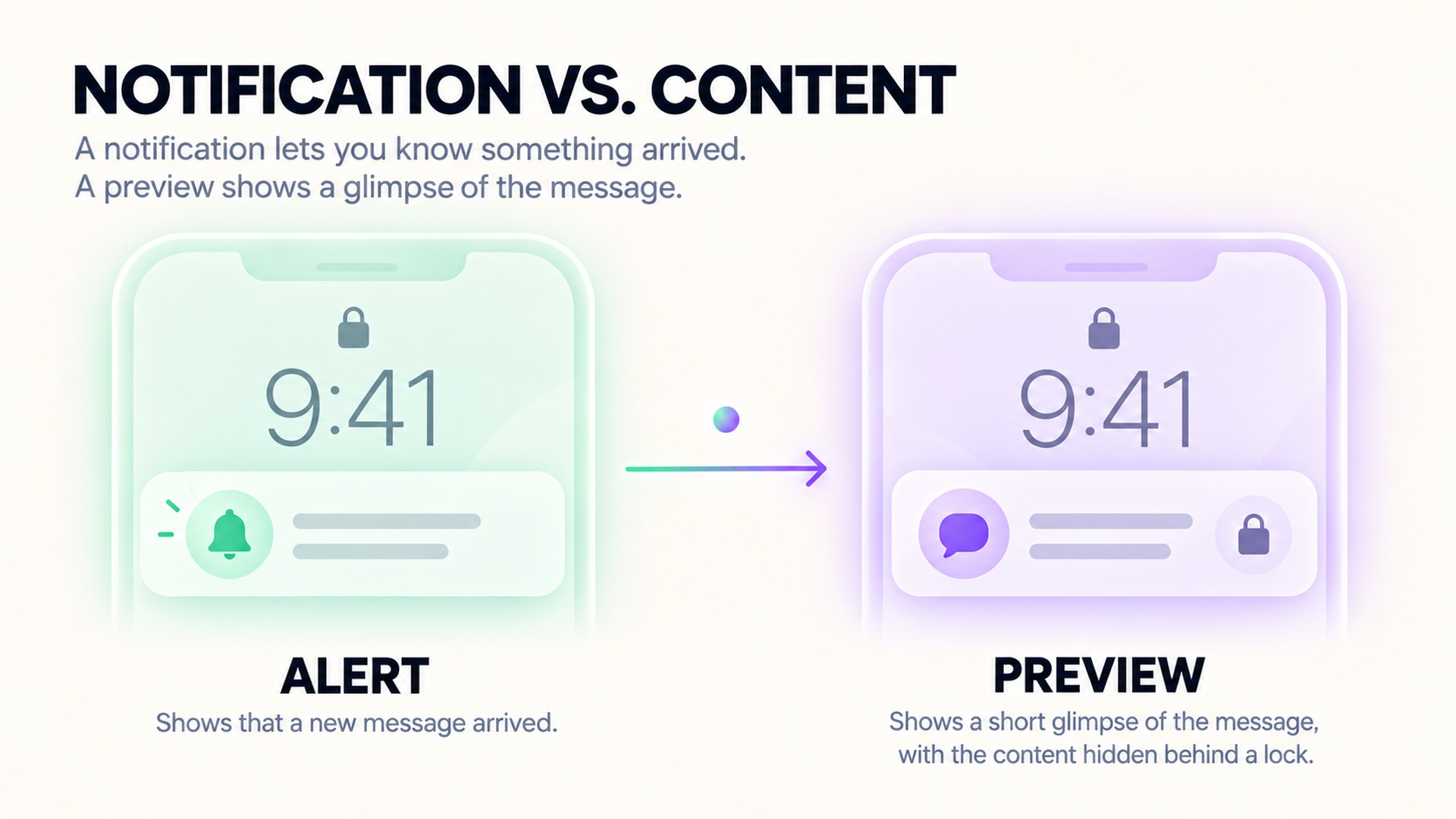
Privacy does not always require turning notifications off. If the goal is to keep the alert while hiding the message text, choose a setting that delays or conceals previews until the device is unlocked, when available. If even the app name or alert timing would reveal sensitive information, turn off lock-screen delivery for that app or use a quieter notification style. Make the choice based on what bystanders can see and what information you still need at a glance.
On some devices, notification visibility is controlled by a global setting and an app-specific setting. A system-level choice may hide content for all apps, while an individual app’s page can control its alert locations or preview behavior. The notification management guide describes both lock-screen visibility and app-level controls. After changing a setting, test it with the screen locked, because the app may render a notification differently than another service.
On these supported devices, the available controls can vary by manufacturer and operating-system release. The lock-screen notification guide describes hiding sensitive content or turning off notifications on the lock screen. A device-specific guide may offer additional choices; the phone lock-screen settings page gives one example. Use these as product-specific instructions, not as a guarantee that every supported device model presents identical options.
Check the watch as well as the phone
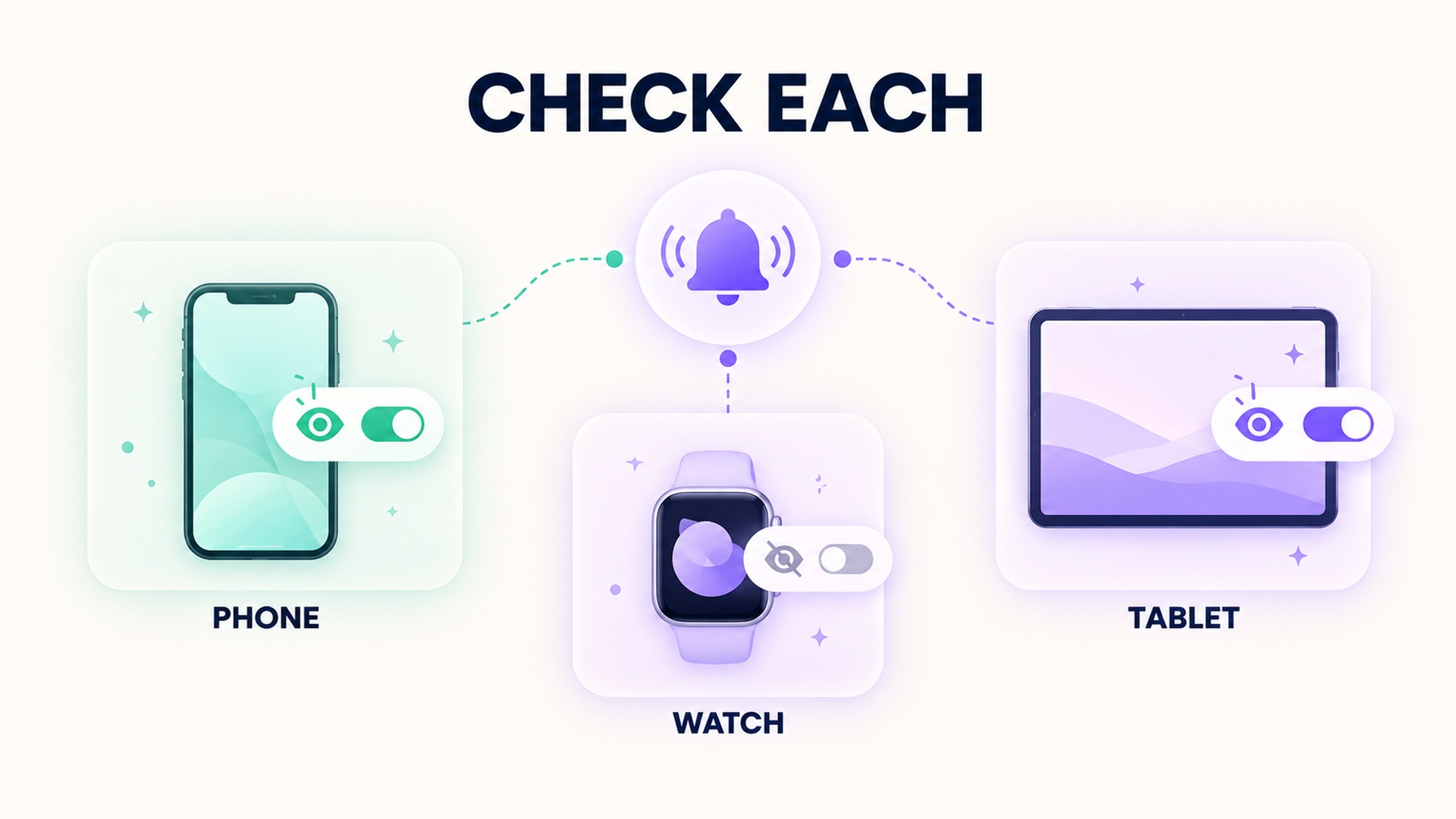
A phone can hide previews while a paired watch still shows a notification on its small display. A tablet, computer, or vehicle screen may also display an alert if the account is connected there. Review where notifications are delivered, not only how one lock screen formats them. If you use a paired device during work or shared activities, check whether it mirrors phone alerts and whether that behavior can be customized.
Some notification systems distinguish the alert from its content. The device may still vibrate or show a generic prompt while withholding the details until authentication. That can preserve awareness without exposing the exact metric. Other apps may suppress both the text and the alert. Verify what happens for the health app that matters to you rather than inferring behavior from a different message app.
The app’s own settings can add another layer. A service may let you choose which health events generate notifications, while the operating system controls the location and preview style. Reducing the number of alerts can help if even generic notifications draw unwanted attention. It does not necessarily erase old notifications from Notification Center or another history view, so check whether an alert remains accessible after it arrives.
Lock-screen privacy is not data deletion
Hiding the text changes what is displayed to someone who can see the locked device. It does not necessarily delete the alert from the app, remove a stored health record, or stop the service from sending data to connected accounts. If your concern is ongoing app access or sharing, review those permissions separately. The health-data sharing guide describes how access to health categories can be reviewed separately from notification appearance.
The same distinction matters when a notification reaches an external display. A preview setting may not change what appears during screen sharing, a paired watch session, or a car interface. Consider those surfaces when deciding whether a particular alert should be allowed on a lock screen at all. If a setting is unclear, consult the help page for the exact device and app version.
Notifications can contain very different types of information. A routine reminder may be low sensitivity, while a message about a symptom or a personal metric may be more revealing. It is reasonable to use different controls for different apps where supported. The health-app privacy guidance for software developers discusses limiting access to health information and communicating how it is used. The user-facing setting still needs to be checked on the device, because an app’s data practices and a lock-screen preview are related but distinct.
A practical check before leaving previews on
Start by locking the device and observing one notification from the health app. Note whether it shows a generic icon, a title, a metric, or the full message. Then change the preview setting and repeat the check. If a watch or another paired screen is used, test that too. This simple comparison reveals the actual behavior more reliably than a label whose meaning may vary across versions.
Next, decide what level of visibility suits the setting. If the device is usually kept in a private place, a preview may be convenient. If it is often on a desk or shared surface, showing only a generic alert or hiding lock-screen delivery may be more appropriate. Consider whether the person needs the notification immediately or whether it can wait until the device is unlocked. Do not turn off a safety-critical alert without understanding what the app is notifying you about.
If an alert appears unexpectedly, read it in the app after unlocking and confirm its source before acting. A wellness prompt should not be treated as a diagnosis, and a hidden preview should not be mistaken for a suppressed medical finding. For more context on separating app notifications from data permissions, see this guide to reviewing health-metric sharing.
The timing and destination of an alert can matter as much as its words. A banner may be visible to people nearby even when the lock screen hides previews. Notification Center may keep an earlier alert available after the banner disappears, and a paired watch may show the full notification when a person raises a wrist. Consider these different moments and test the device where it is usually used.
It can help to review alert behavior with a neutral, non-sensitive test before changing a setting that might affect important messages. Confirm whether the control hides only the text, suppresses the badge, or stops delivery entirely. If the app has categories for different kinds of alerts, inspect them individually. A log reminder and an alert about a health event may not need the same display treatment.
When several devices are paired, change one setting at a time and verify each screen. A phone may hide content while a watch mirrors the title. A tablet may remain signed in and continue to show alerts. If the service offers a device list, review where the account is active. This check can explain why a notification seems to ignore a setting changed elsewhere.
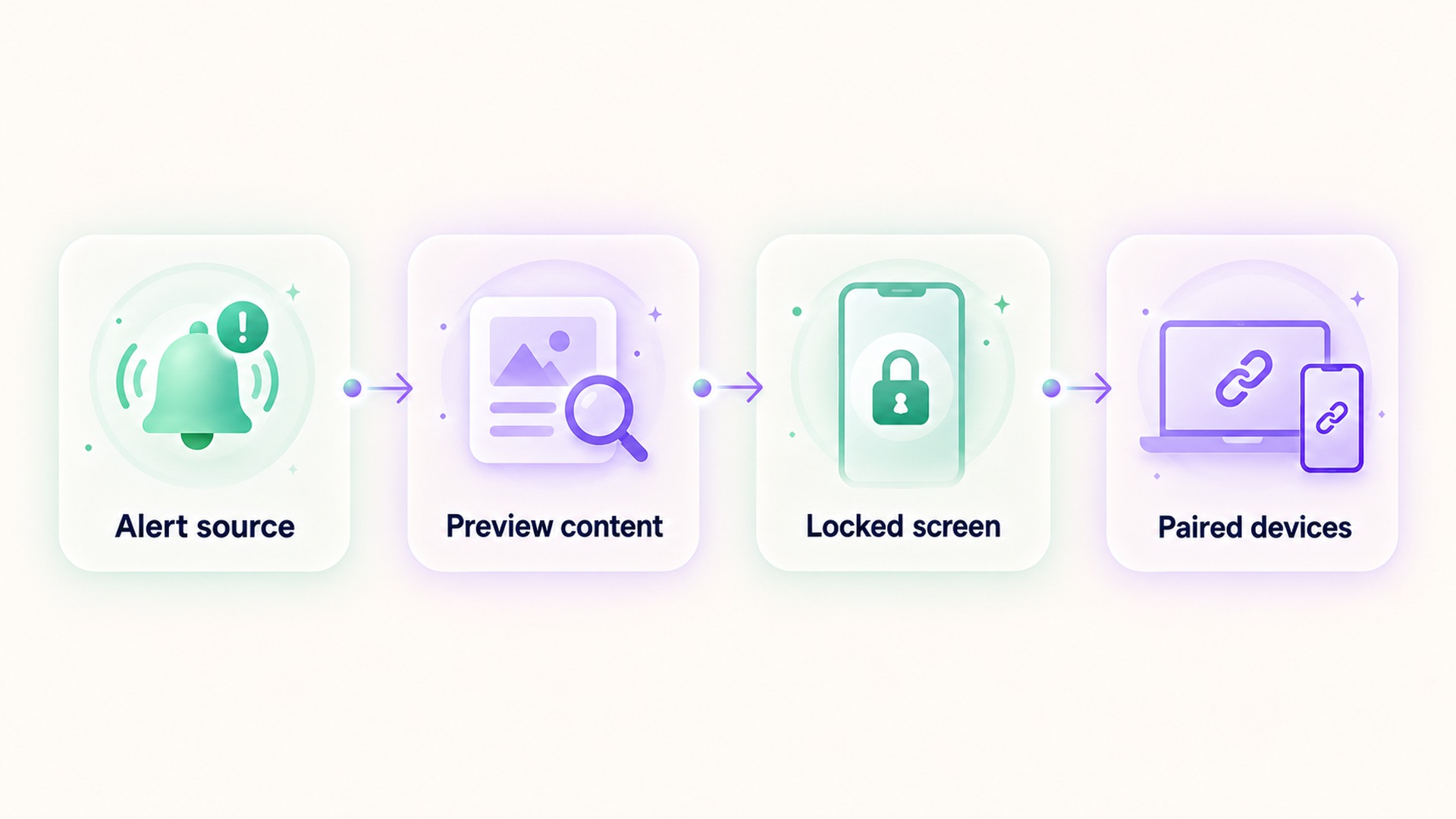
Also consider whether the app sends the same alert through email or another connected service. Lock-screen preview controls apply to the device display, not every route by which a notification may arrive.
Frequently asked questions
Can I keep a health notification but hide its text?
Often, yes. Some devices allow notifications to appear while delaying previews until the device is unlocked. The available behavior depends on the operating system and app, so test the setting on the device you use.
Does hiding a preview delete the health information?
No. It changes what is visible on the locked screen. The alert or underlying record may still be stored in the app or synced to connected services.
Should I turn off every health notification?
Not necessarily. First identify what the alert is for and whether it is time-sensitive. You can often limit where it appears or hide its contents while keeping a generic alert.
*This article is for informational purposes only and is not a substitute for professional medical advice, diagnosis or treatment.*
Sources:
Apple Support·Apple Support·Android Help·Google Pixel Help·Apple Support·Federal Trade Commission
Related articles
Confirm a workout has stopped before trusting its final totals
A workout can keep recording after the exercise itself has ended. Check the stop action, saved summary, and time boundaries before interpreting the totals.

Automatic workout merging can hide the break between sessions
Workout history can combine nearby sessions into one entry, even when you intended to record a meaningful break. Review the timestamps, segments, and source before interpreting the total as one continuous effort.
A supplement quality seal does not prove a recovery benefit
A quality seal may indicate that a product passed specific checks, but it does not show that the supplement improves recovery. Keep manufacturing evidence, ingredient evidence, and human outcome evidence separate.
Lower energy after cutting caffeine may need withdrawal context
Fatigue after reducing caffeine can be part of withdrawal, but it is not the only possible explanation. Keep the timing of the change, symptoms, sleep, and other context together before interpreting an energy score.
Total fat does not describe the saturated fat in a food log
Total fat and saturated fat are related label fields, but they are not interchangeable. Keep the total and its saturated-fat component visible when recording food or comparing packages.
Net carbohydrate claims need the total carbohydrate record beside them
A “net carb” number can hide how it was calculated. Keep total carbohydrate, fiber, sugar alcohols, serving size, and the subtraction method together so a food record remains interpretable.
Check servings per container before logging a whole package
Nutrition values are often listed per serving even when a package contains several servings. Check the serving count and the amount eaten before entering the whole package into a food log.
Sodium and salt amounts should not be entered as the same number
Salt and sodium are related but they are not the same quantity. Keep the label’s nutrient value and the food’s salt description separate so a nutrition log does not silently change units.
Add caffeine milligrams across drinks, foods and supplements
A caffeine journal is more accurate when it counts milligrams from drinks, foods, and supplements together. Keep product serving sizes and unknown amounts visible instead of treating each item as one equal dose.
Sleep changes after reducing alcohol need more than a score comparison
Sleep may change after someone reduces alcohol, but a score comparison cannot explain the cause or the course. A useful review includes symptoms, timing, routine, device limits, and medical support when needed.