Review who can see each health metric before enabling social sharing
By Mr.Apps · Oct 23, 2026
Category:Wearable
Turning on social sharing for a health or fitness account can expose more than a single activity card. People may be able to see selected metrics, recurring summaries, or future updates, and the controls can depend on the feature and the audience chosen. Before enabling a share option, I review which metric is visible, who can view it, and how to remove or narrow access later.
A private profile does not necessarily mean every shared item is private. An app can have separate settings for profile visibility, followers, workout posts, health metrics, and notifications. A person may also approve followers over time or share an item through a link that can be forwarded. Those are separate pathways, so I check the actual audience selector for each feature rather than treating one privacy label as a complete description.
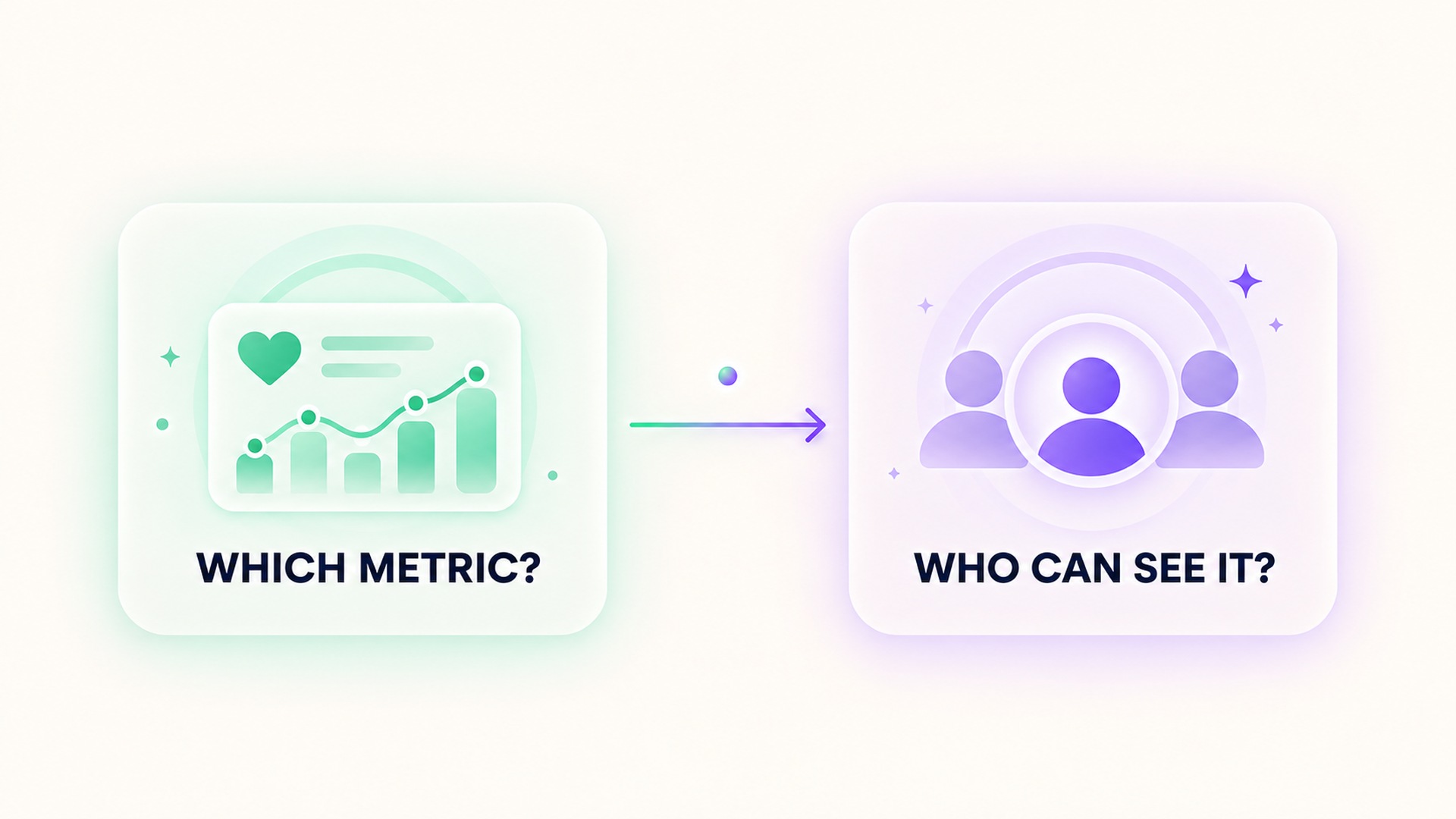
Review the metric and the audience separately
First identify the specific information a feature shares. It might be a workout, an activity ring, a sleep summary, a daily score, a route, or a chart. These items can reveal different things. A workout may show the activity type and time. A route may disclose where movement began or ended. A recurring score may reveal patterns in sleep, recovery, or daily routines even when it does not include a medical record.
Then inspect the audience control. The feature might offer a selected-person list, all followers, a group, or a public view. Check whether the default is private, whether existing followers can already see the content, and whether a new follower receives access to past posts or only future ones. A platform’s activity-sharing guide documents controls such as hiding progress or removing an individual from a sharing relationship. That example shows why audience changes may be person-specific rather than controlled by one account-wide switch.
A score can be personal information even without a diagnosis
Health and fitness values are not all equally revealing, but a pattern can become meaningful when combined with timing, activity, or other details. A weekly sleep score, workout history, or repeated low-energy pattern could allow someone to infer routines or changes that the account holder did not intend to discuss. Avoid assuming that a metric is harmless because it is generated by a consumer app or because it is not a clinical diagnosis.
The audience matters too. Sharing with one trusted person is different from posting to a group, a public feed, or a community where screenshots can travel beyond the original members. Access may also change when group membership changes. Before sharing, consider whether the feature lets you remove a particular follower, turn off access to a single metric, hide past records, or stop new updates. If those controls are not clear, keep the setting off until you can verify what it does.
Health apps may have different data practices depending on their functions and applicable rules. The mobile health app guidance for developers advises developers to limit data collection and permissions and to communicate how information is used. The interactive tool for health app law also illustrates that the rules can depend on what an app does and which organizations handle the data. For a user, the practical lesson is to read the app’s current privacy explanation and permission screen rather than infer a data policy from the words “private” or “friends only.” A setting that controls social visibility may not control analytics, integrations, or storage by the service.
Check each connection that can move the data
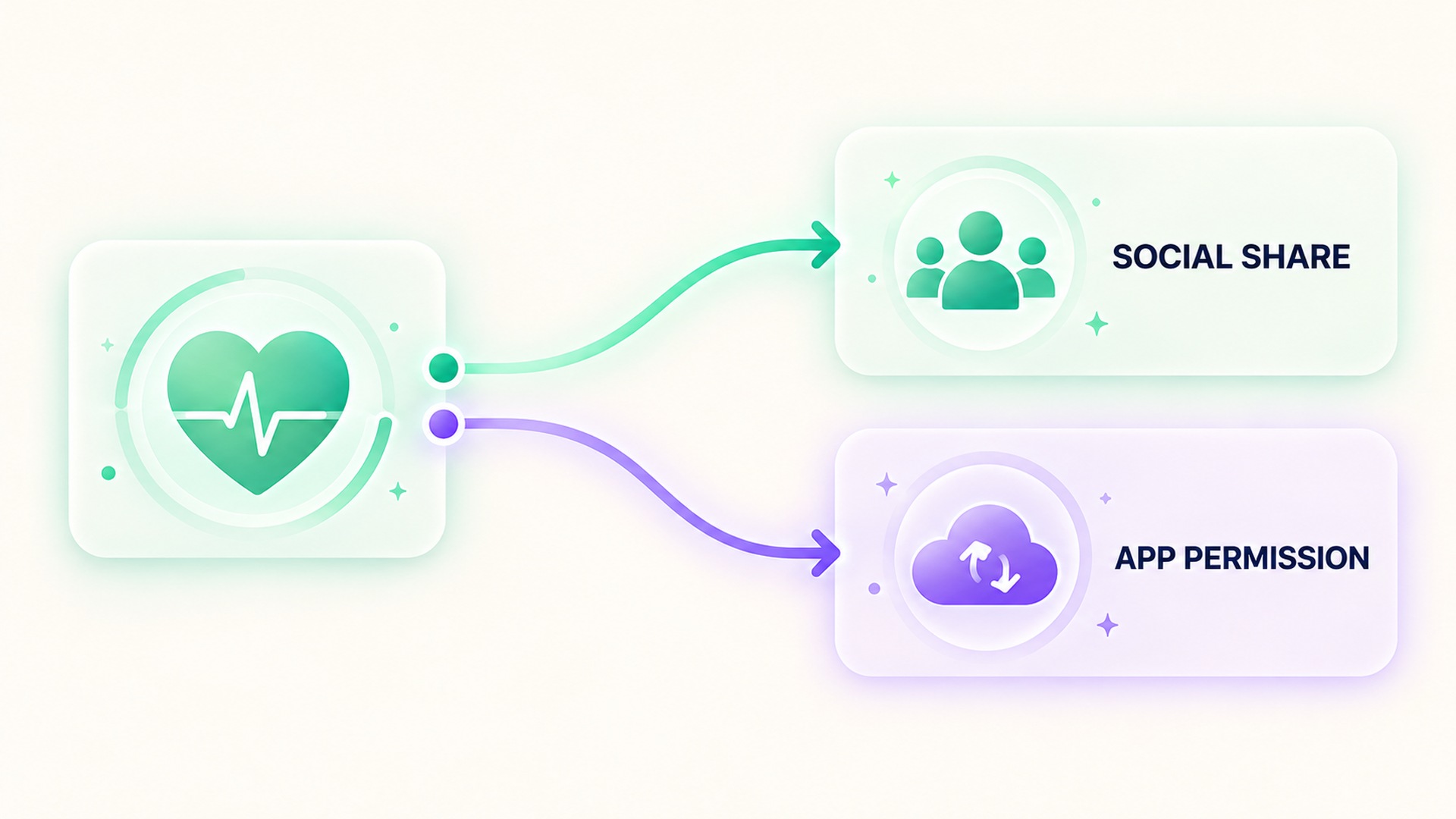
Social posting is only one route. A health app can connect to a platform that stores measurements, import records from another app, or grant another service permission to read certain categories. Review those connections separately from followers. On a phone, the operating system may list which apps can read or write health categories. Its health-data permission guide describes reviewing and changing app access by data type. Removing a social follower would not necessarily revoke one of these integrations.
Check whether the setting is a one-time post control or a continuing permission. A post setting could apply only to the current activity, while a permission could allow ongoing access to later records. Also note whether the app distinguishes between viewing a metric and receiving a notification about it. A person could lose access to a feed but still receive an alert, or stop seeing a score while an external integration continues syncing it elsewhere. Device privacy controls can manage access to categories such as location, photos, or health information; the operating-system privacy overview describes where those app permissions can be reviewed.
When a feature has several layers, take a moment to inspect the preview before confirming a share. Look for the metric name, date range, map or location details, and account identifier. Check whether the app includes a headline or auto-generated summary that could disclose more than the number itself. If a share is presented as a card, open the details or preview when available; a small thumbnail does not necessarily show everything that will be sent.
Treat future audience changes as part of the review
The people who can view a shared item may not stay the same. A follower can be added later, a group can expand, or an app can change the way it interprets a privacy control. If the service provides a list of current viewers, revisit it after adding followers or joining a group. Check whether old activity remains visible after you switch a control off, and whether the service explains how to remove past posts.
Some activity features let a person hide progress from one individual or remove that person from sharing. The watch sharing controls describe those options for a particular activity-sharing feature. Such a control is useful, but it should not be read as a promise that every other part of an account, prior notification, screenshot, or connected service has been erased. Confirm the feature’s scope and review adjacent controls when the goal is broader privacy.
If you share a summary with a clinician, coach, or family member, send only the information needed for that purpose and choose a destination you trust. A direct, limited share may be more suitable than opening an ongoing feed. Before using a link, check whether it expires, can be forwarded, or requires the recipient to sign in. If a setting cannot answer these questions, consult the service’s current help documentation and keep broader sharing disabled until you know the audience.
For a broader explanation of how wearable records can travel between systems, see this guide to workout data imports. A transfer permission and a social-sharing permission solve different problems, and each deserves its own review.
A brief sharing checklist
Before enabling a feature, name the metric, identify its audience, and read the setting’s scope. Check whether the share is public, limited to selected people, or part of an ongoing connection. Look for location, timing, and trend details that may appear with the value. Find the controls for hiding future updates, removing a viewer, and restricting access to stored health categories.
After changing a setting, return to the feature and confirm the new audience is shown. If the app has a preview, review the card that another person will receive. If you cannot tell whether the switch applies to one post or all future data, do not rely on the switch label alone. The supporting documentation may explain the boundary, or the service may need to clarify it.
Keep in mind that a person who has already seen or saved a shared item may retain a copy after access changes. Stopping future sharing can limit what is delivered next, but it cannot guarantee that every earlier view or screenshot disappears. Review these controls again when a new audience member joins or the app changes its privacy interface.
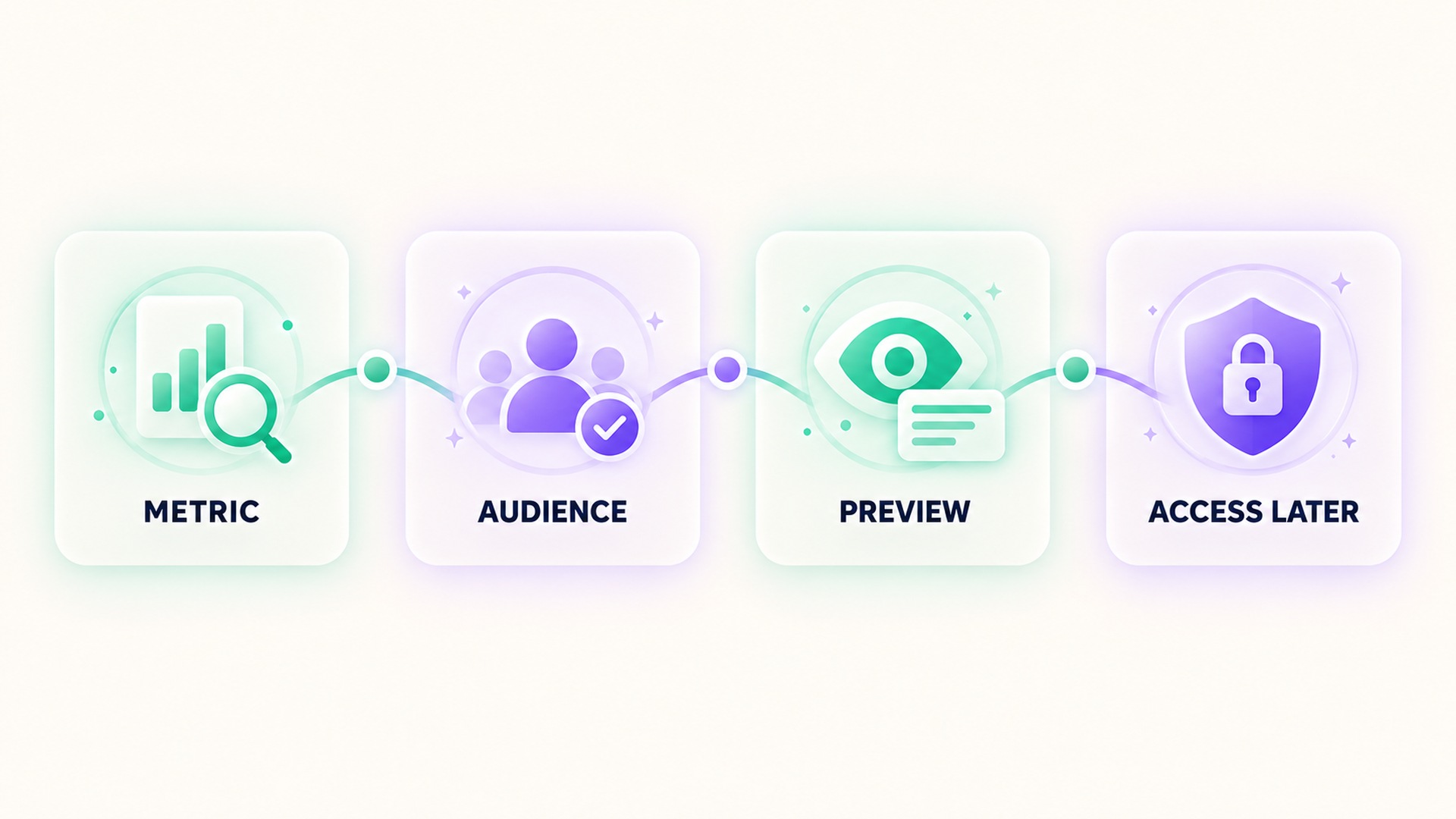
Privacy review should be specific rather than fearful. Sharing can support accountability, coaching, or connection when the scope is clear and the chosen audience is appropriate. The aim is to make the decision with an accurate view of what leaves the account, who can see it, and whether the same permission continues after the current post. If the privacy screen uses broad wording, write down what you still need to know and check the current help page before relying on the control. This is especially useful when a share combines a metric with a date, location, or repeated pattern.
Frequently asked questions
Does a private account make every health metric private?
Not automatically. Profile visibility, followers, activity posts, health-data permissions, and connected services can use separate controls. Review the audience setting attached to the specific metric or feature.
Can someone see a health score without seeing the full record?
Possibly. An app may share a score or summary separately from the underlying measurements. Check the share preview and its description to see which fields and dates are included.
What should I check after turning sharing off?
Confirm whether the change stops future updates, hides existing posts, or removes the viewer’s access entirely. Also review connected apps and links, since those may have different permissions.
*This article is for informational purposes only and is not a substitute for professional medical advice, diagnosis or treatment.*
Sources:
Apple Support·Apple Support·Federal Trade Commission·Federal Trade Commission·Apple Support·Apple Support
Related articles
Health notification previews can expose information on a locked screen
A health alert can be useful while its full text stays hidden from bystanders. Check notification previews on the phone and paired devices before relying on lock-screen privacy.
Confirm a workout has stopped before trusting its final totals
A workout can keep recording after the exercise itself has ended. Check the stop action, saved summary, and time boundaries before interpreting the totals.

Automatic workout merging can hide the break between sessions
Workout history can combine nearby sessions into one entry, even when you intended to record a meaningful break. Review the timestamps, segments, and source before interpreting the total as one continuous effort.
A supplement quality seal does not prove a recovery benefit
A quality seal may indicate that a product passed specific checks, but it does not show that the supplement improves recovery. Keep manufacturing evidence, ingredient evidence, and human outcome evidence separate.

Lower energy after cutting caffeine may need withdrawal context
Fatigue after reducing caffeine can be part of withdrawal, but it is not the only possible explanation. Keep the timing of the change, symptoms, sleep, and other context together before interpreting an energy score.
Total fat does not describe the saturated fat in a food log
Total fat and saturated fat are related label fields, but they are not interchangeable. Keep the total and its saturated-fat component visible when recording food or comparing packages.
Net carbohydrate claims need the total carbohydrate record beside them
A “net carb” number can hide how it was calculated. Keep total carbohydrate, fiber, sugar alcohols, serving size, and the subtraction method together so a food record remains interpretable.
Check servings per container before logging a whole package
Nutrition values are often listed per serving even when a package contains several servings. Check the serving count and the amount eaten before entering the whole package into a food log.
Sodium and salt amounts should not be entered as the same number
Salt and sodium are related but they are not the same quantity. Keep the label’s nutrient value and the food’s salt description separate so a nutrition log does not silently change units.

Add caffeine milligrams across drinks, foods and supplements
A caffeine journal is more accurate when it counts milligrams from drinks, foods, and supplements together. Keep product serving sizes and unknown amounts visible instead of treating each item as one equal dose.