Resetting a wearable is different from deleting a health account
By Mr.Apps · Oct 23, 2026
Category:Wearable
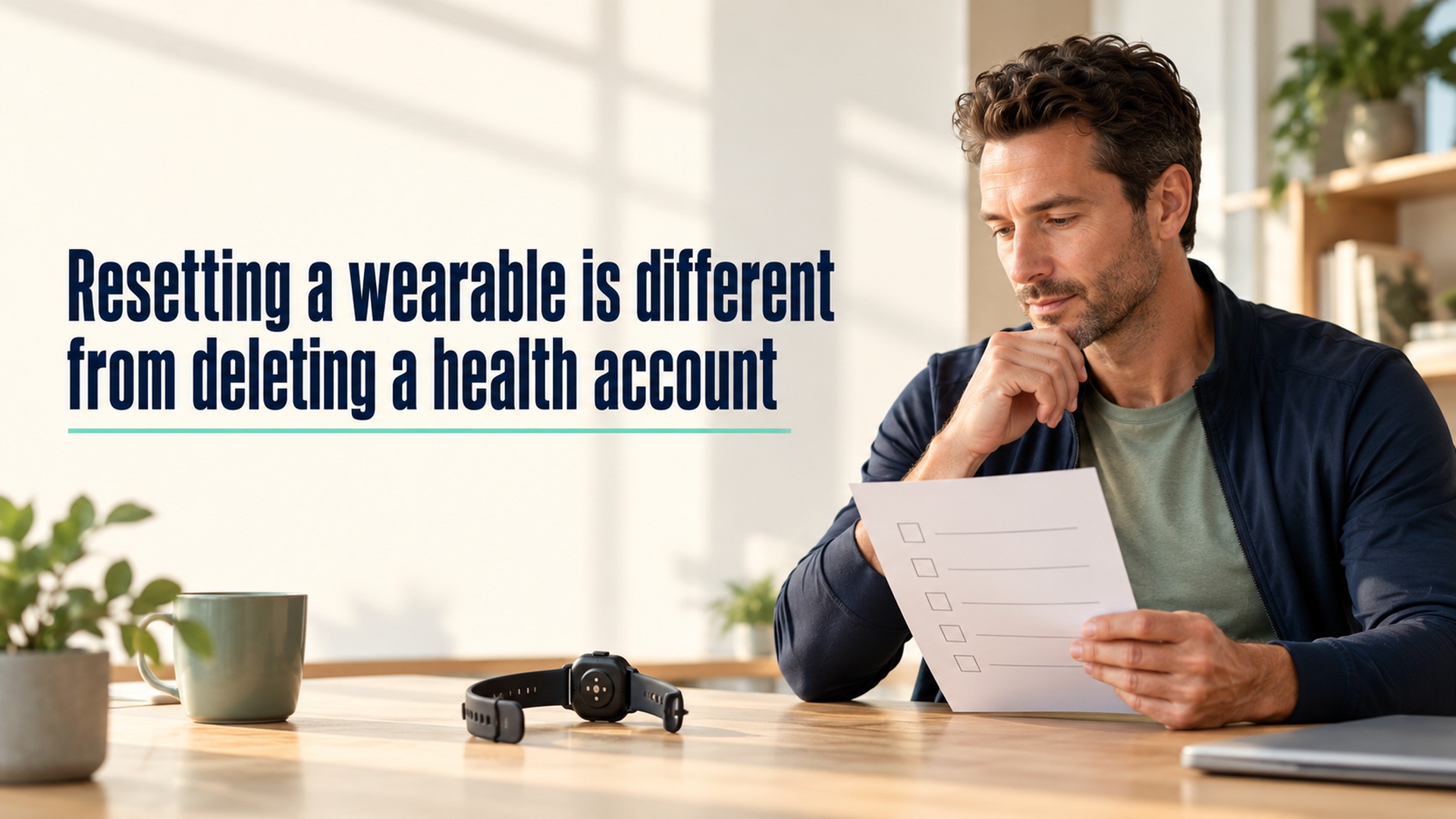
Resetting a wearable and deleting a health account are different actions. A reset usually clears settings and information stored on the device so it can be set up again or transferred. Account deletion concerns information and services associated with an online account. Unpairing may also remove an activation lock or change a connection between devices, but it does not necessarily erase data stored in a cloud service or by other apps.
Before replacing or giving away a wearable, I identify which device, app, and account hold the information. Then I check what each operation changes, what it leaves behind, and whether a backup or sync is involved. A device that looks blank after reset does not prove that all remote copies have been deleted.
Separate reset, unpairing, and account deletion
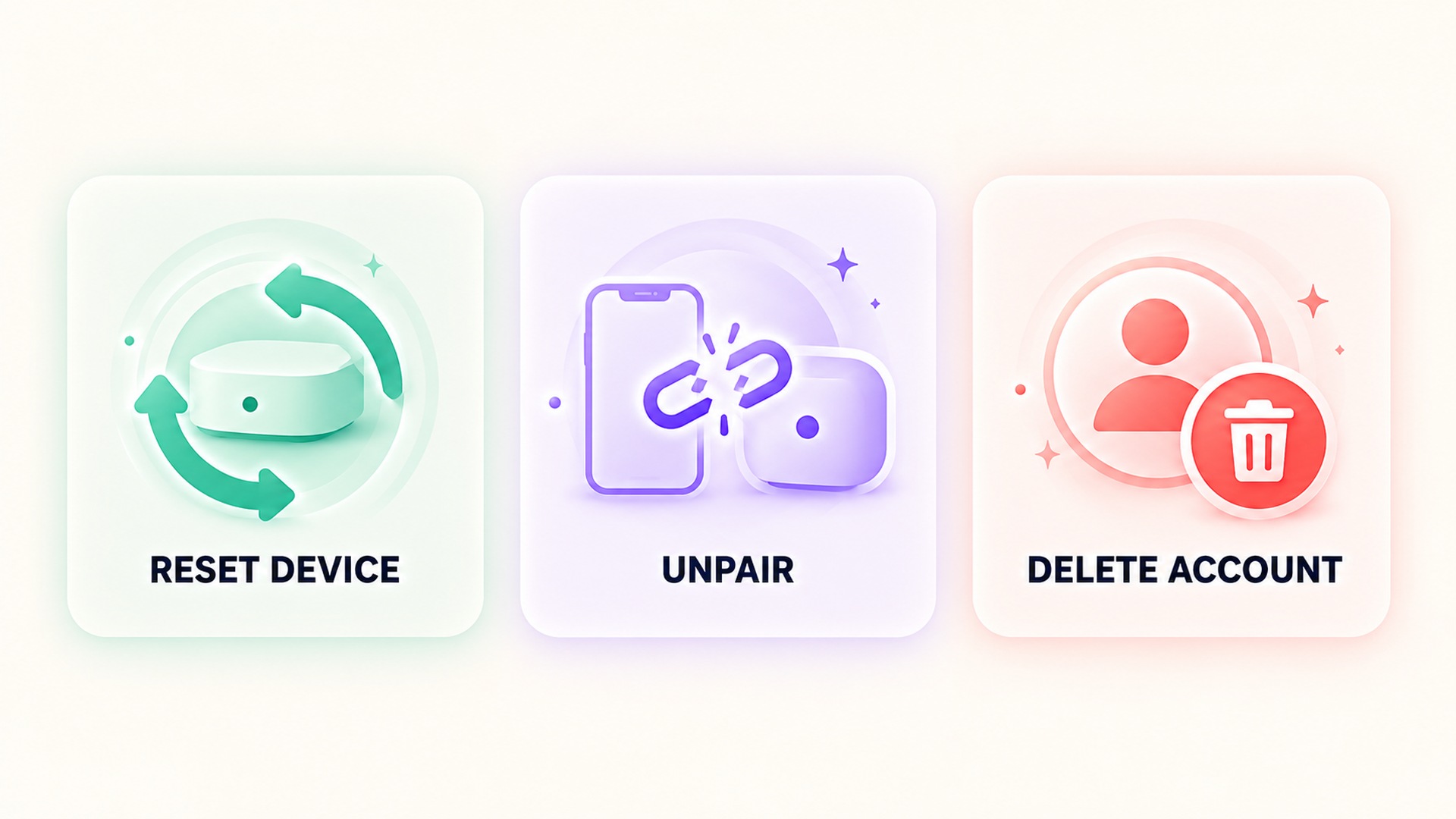
A device reset returns local settings to a defined state. Depending on the product, it may erase local records, saved connections, or user preferences. Unpairing disconnects a wearable from its phone or companion app and can change how another person may activate it. An account deletion request can affect cloud content, subscription access, and other services tied to that account. These actions may be offered next to one another in a setup flow, but they have different effects.
The wearable unpairing guide explains that one unpairing flow erases the watch and removes an activation lock, while erasing directly on the watch can leave the lock in place. It also states that device erasure does not remove content from the cloud. That example makes the broader point: read the specific instructions for the model and pairing context, because “reset” does not always mean the same thing across products.

Find where the health data is stored
Health information may exist in more than one place: on the wearable, in a phone app, in an operating-system health store, in a cloud backup, and in a separate service that receives imported records. Deleting an entry from one layer may not remove a copy held elsewhere. A data export, app integration, or previous sync can create additional copies that have their own deletion controls.
The health-data management guide distinguishes records stored on a device from health data synced to a cloud account, and describes controls for deleting each. Another backup guide explains that health information may be stored in cloud backups when the relevant feature is enabled. Check the current account and backup settings before assuming that resetting hardware deletes the synchronized record.
For a different platform, the connected health-data guide describes how connected apps can read or edit shared health data and notes that another app may retain a copy. A separate health-data deletion guide explains that deleting data from one health store may not remove copies held by individual apps or devices. These examples show why a complete account review can require more than one deletion control.
Consider a typical handoff: a wearable stores a recent session, the phone imports it, and another service syncs a summary. Resetting the wearable affects the first location, but the phone and service may still hold their own records. A later restore from backup can also place information back onto replacement hardware. If you intend to preserve the history, verify the backup before reset. If you intend to remove a particular record, list the connected destinations and check each one after the deletion request.
Exports and screenshots are another separate copy. A person may have downloaded an archive, saved a chart, or attached a summary to a message. A service’s deletion controls generally address the copy it manages; they cannot necessarily remove files held outside that account. Before transferring or retiring hardware, decide whether the task is device preparation, stopping future synchronization, removing records from services, or requesting account closure. Naming the intended outcome helps avoid using an unnecessarily broad control.
Confirm whether you mean remove an account or delete it
Removing an account from a device often stops that device from syncing through the account. It may not delete the account itself or its cloud content. Signing out can leave local copies on the device, depending on the option selected. Deleting an account can remove access to much more than health data, including unrelated files, purchases, or services. Read the confirmation screen and the account provider’s current explanation before choosing an operation.
The account deletion guide describes the broader data and services that can be lost when an entire account is deleted. If the goal is to stop using one wearable, full account deletion may be wider than necessary. A device reset, a separate health-data deletion, or revoking an app permission may address different goals. Decide which data and access you want removed before selecting a control.
Check syncing and backups before the device changes hands
If you want to retain health history, verify that the latest records synced or were backed up before erasing the wearable. Do not assume a device made a current backup simply because a sync icon appeared earlier. Check the timestamp, status, or most recent entry in the destination app. If the device is already unavailable, consult the provider’s recovery or account settings and note what can still be confirmed.
If you want to remove health history, identify each data store that may contain it. That may include the wearable, the phone’s health store, the companion app, a connected platform, a cloud account, and an export saved elsewhere. Deleting one record can be appropriate when the concern is a specific inaccurate entry. Deleting a broad category or entire account is a different choice with wider consequences.
Some services let you disconnect an integration without deleting previously imported data. Others provide a separate option to remove data that one connected app wrote. The order can matter: disabling a sync may stop future updates while leaving earlier data in place. Read the product’s directions and verify the result in each destination that matters to you. Avoid treating a disconnected icon as proof that stored information was erased.
Use a handoff checklist for a replacement device
Before transferring a wearable, decide whether the device is staying with you, being repaired, or going to another person. Check whether you need a backup, whether the wearable must be unpaired to remove activation protection, and whether any cellular plan or app connection needs separate attention. Confirm which account will remain associated with the device after the operation.
After reset or unpairing, verify the device setup screen and the account’s device list. If a previous account still appears, the new owner may be unable to activate the wearable. If your goal was data deletion, separately check the health store and cloud service rather than relying on the setup screen. Information stored in a cloud service may remain available when a person signs out of a device, unless separate deletion actions are taken.
For a device that is being passed to another person, remove personal information from local storage and confirm the account protection or activation lock is cleared where the product requires it. If the device will remain in your possession, a reset may be unnecessary; changing the pairing or permissions may be enough. Follow the manufacturer’s steps for the precise model, because an erase performed without unpairing may leave a security lock in place.
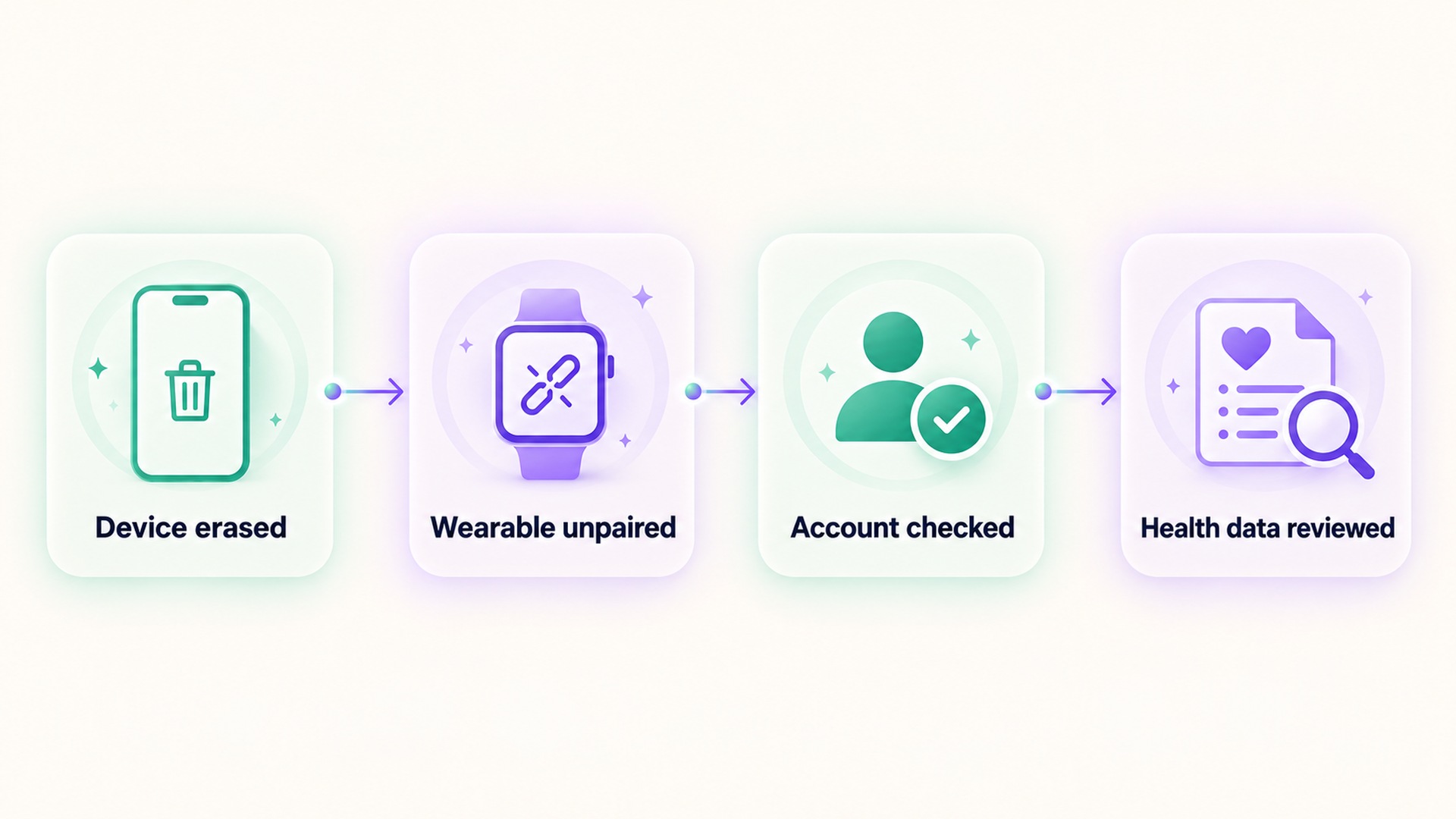
Keep a note of the operation performed and the account or app that confirmed it. That record helps distinguish “device erased,” “app disconnected,” “local health data deleted,” and “account deleted.” For related privacy controls on connected health information, see this guide to reviewing metric access and sharing. These are separate settings, so verify the one that matches your goal.
An account may also be linked to services beyond health tracking. Before deleting it, review which email, storage, subscriptions, purchases, and sign-in methods depend on it. If the goal is to stop one app from reading records, revoke that app’s permission and check whether its local or cloud copy remains. If the goal is to remove a health record, use the data-deletion controls for each service that stores a copy. The correct step depends on the information and access you intend to change.
Do not rely on a factory-reset animation alone as evidence that an account was deleted. A reset confirms that the device completed its local process; an account deletion flow should provide its own confirmation and account-level status. Likewise, a service may allow account recovery for a period or retain some records under its published policies. Read the current confirmation details and keep a copy of the service’s completion notice if you need to document the request.
Frequently asked questions
Does resetting a wearable delete health data from an online account?
Not necessarily. A reset may erase data stored on the wearable while leaving synchronized data in a phone app, cloud service, or connected health platform. Check each location separately.
Is removing an account from a device the same as deleting it?
No. Removing or signing out can disconnect one device while the online account and its data remain available elsewhere. Account deletion can affect a much wider set of services and content.
What should I verify before giving a wearable to someone else?
Confirm backup needs, unpairing and activation-lock steps, local erasure, linked account status, and any separate plan or app connection. Follow the exact instructions for the device model.
*This article is for informational purposes only and is not a substitute for professional medical advice, diagnosis or treatment.*
Related articles
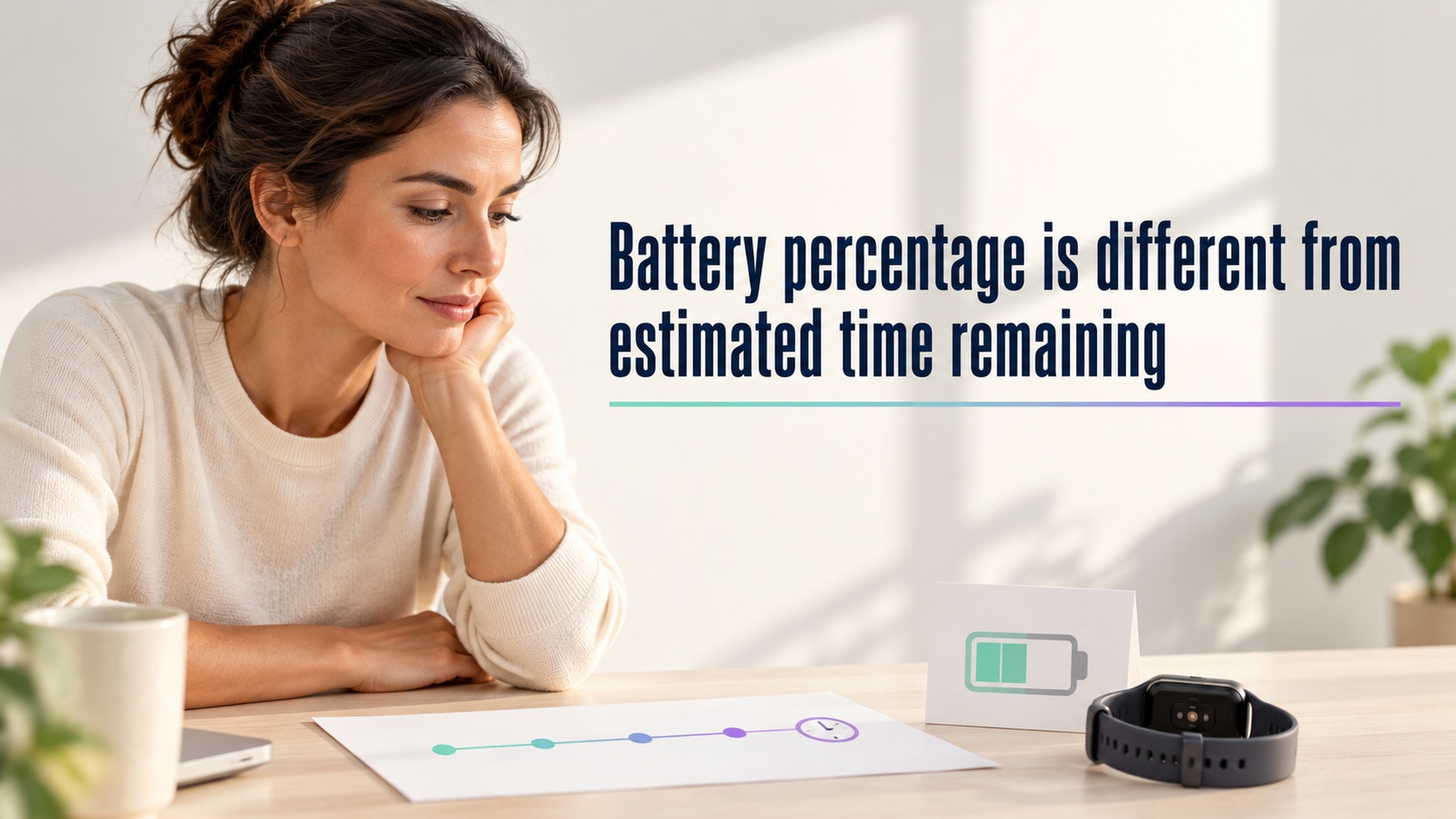
Battery percentage is different from estimated time remaining
A battery percentage and an estimate of time remaining describe different things. The percentage is a device’s current estimate of its stored charge relative to a full charge.

A detected fall cannot explain why someone fell
A fall-detection alert can identify a movement pattern that a device is designed to recognize. It cannot, by itself, explain why someone fell.

Health charts need labels and shapes as well as color
A health chart should remain understandable when a reader cannot distinguish its colors. Color can make a graph easier to scan, but it should not be the only cue that tells someone which line is a metric, whether a result changed, or what action a symbol represents.

An inferred injury should not become a confirmed health record
A health app may infer an injury from a pattern, but that is different from a user report or clinical diagnosis. Check the source, date, and supporting record before treating the statement as confirmed.

Adding a workout photo requires a separate privacy review
A workout photo can reveal details beyond the activity numbers, including background clues and file metadata. Review the image, its audience, and the final share preview before posting.
Review who can see each health metric before enabling social sharing
A social-sharing control can reveal a specific health metric to a chosen audience or a wider group. Check the metric, audience, preview, and ongoing data permissions before enabling it.

Health notification previews can expose information on a locked screen
A health alert can be useful while its full text stays hidden from bystanders. Check notification previews on the phone and paired devices before relying on lock-screen privacy.

Confirm a workout has stopped before trusting its final totals
A workout can keep recording after the exercise itself has ended. Check the stop action, saved summary, and time boundaries before interpreting the totals.

Automatic workout merging can hide the break between sessions
Workout history can combine nearby sessions into one entry, even when you intended to record a meaningful break. Review the timestamps, segments, and source before interpreting the total as one continuous effort.

A supplement quality seal does not prove a recovery benefit
A quality seal may indicate that a product passed specific checks, but it does not show that the supplement improves recovery. Keep manufacturing evidence, ingredient evidence, and human outcome evidence separate.